Unit 2: Exploring Microsoft Excel
1. Excel Window Features
Microsoft Excel is a powerful electronic spreadsheet program you can use to automate accounting work, organize data, and perform a wide variety of tasks. Excel is designed to perform calculations, analyze information, and visualize data in a spreadsheet. Also, this application includes database and charting features.
For this course we are going to be using the Microsoft Excel 2019.
To launch Excel for the first time:
1. Click on the Start button.
2. Click on All Programs.
3. Select Microsoft Office from the menu options, and then click on Microsoft Excel 2019
The purpose of the window features is to enable the user to perform routine tasks related to the Microsoft applications. All the Office applications share a common appearance and similar features. The window features provide a quick means to execute commands. Here are some pertinent Excel features:
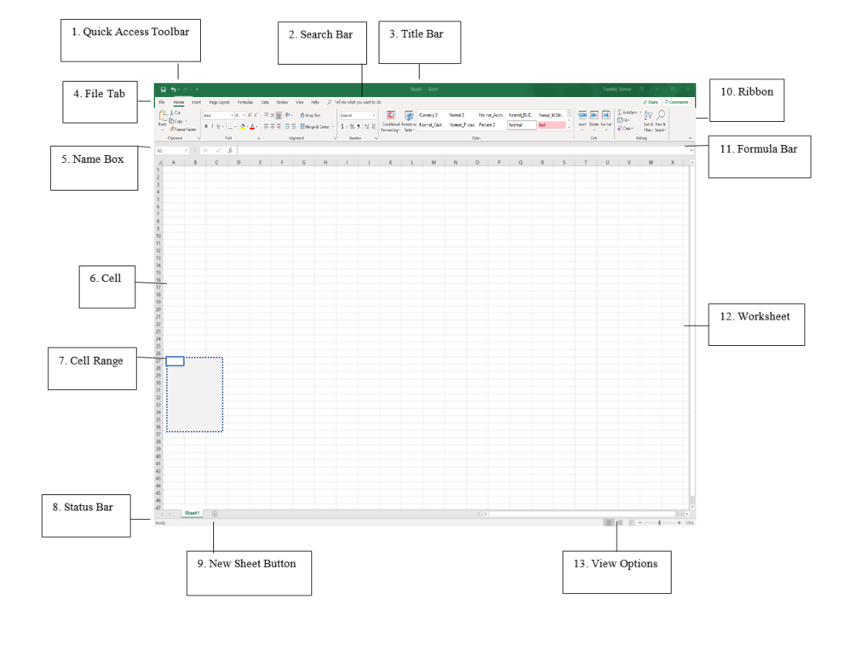
- Title Bar: It shows the title name of the workbook together with the application extension.
- Quick Access Toolbar: Its feature allows you to customize your frequently used and important tools.
- Active Cell: A cell that is currently selected. It will be highlighted by a rectangular box and its address will be shown in the address bar. To edit a cell, you double-click on it or use F2 as well.
- Columns: A column is a vertical set of cells. A single worksheet contains 16384 total columns. Every column has its own alphabet for identity, from A to XFD.
- Rows: A row is a horizontal set of cells. Every row has its own number for identity, starting from 1 to 1048576.
- Fill Handle: It’s a small dot present in the lower right corner of the active cell. It helps you to fill numeric values, text series, insert ranges, insert serial numbers, etc.
- Address Bar: It shows the address of the active cell. If you have selected more than one cell, then it will show the address of the first cell in the range.
- Formula Bar: The formula bar is an input bar, below the ribbon. It shows the content of the active cell, and you can also use it to enter a formula in a cell.
- File Menu: It contains options like (Save, Save As, Open, New, Print, Excel Options, Share, etc.)
- Status Bar: It is a thin bar at the bottom of the Excel window. It will give you instant help once you start working in Excel.