Unit 3: Formulas and Functions
1. Excel Formulas
Microsoft Excel is an electronic spreadsheet that automates manual calculations involved in accounting and bookkeeping. After you have typed the basic text and number entries in a spreadsheet cell, Excel can perform the math calculations for you. Formulas are entered in the worksheet cell and must begin with an equal sign "=". The formula then includes the addresses of the cells whose values will be manipulated with appropriate operands placed in between. After the formula is typed into the cell, the calculation executes immediately and the formula itself is visible in the formula bar.
Example formulas are: =D15+D18+D21: =B4-B12: =A10/B15: =(B16+C16) *1.07
Do not use any spaces in formulas. Also, when creating formulas, you may choose to either type the cell address or use the mouse to select the cell address.
You can create any type of math calculation on your own using the following mathematical operators:
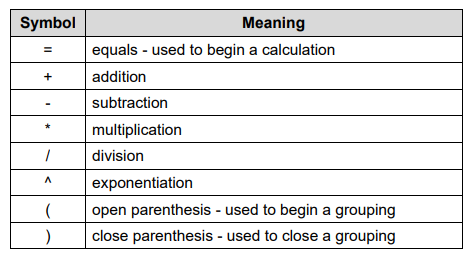
Excel follows the mathematical order of hierarchy where operators are processed in the order: negation, exponentiation, multiplication/division, and then addition/subtraction. Use parentheses to clarify the order of calculation in a formula. To view the actual formula in a cell and its components, double-click on the cell or click once and press F2. Also, if you select the cell, you will see the formula or function for the cell in the Formula Bar.
Basic steps for creating a formula:
1. Click in the empty cell which will contain the formula.
2. Type an equal sign (=).
3. Type the cell address or click the cell that contains the first number.
4. Type the math operator (+ - / * ^).
5. Type the cell address or click the cell that contains the second number.
6. Continue in this manner until the formula is complete.
7. Use parenthesis for clarification.
8. Press the Enter key.