Unit 2
| Site: | Newgate University Minna - Elearning Platform |
| Course: | Introduction to Web Technologies |
| Book: | Unit 2 |
| Printed by: | Guest user |
| Date: | Saturday, 25 July 2026, 11:51 AM |
What is CSS?
Cascading Style Sheets (CSS) is used to format the layout of a webpage. With CSS, you can control the color, font, the size of text, the spacing between elements, how elements are positioned and laid out, what background images or background colors are to be used, different displays for different devices and screen sizes, and much more! CSS can be added to HTML documents in 3 ways:
• Inline - by using the style attribute inside HTML elements
• Internal - by using a <style> element in the <head> section
• External - by using a <link> element to link to an external CSS file
The most common way to add CSS, is to keep the styles in external CSS files. However, in this tutorial we will use inline and internal styles, because this is easier to demonstrate, and easier for you to try it yourself.Inline CSS
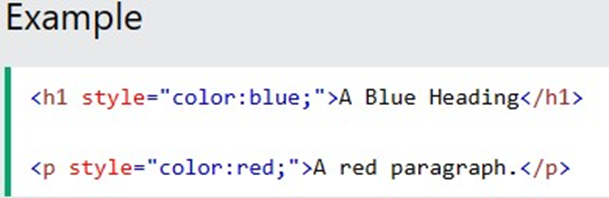
An inline CSS is used to apply a unique style to a single HTML element. An inline CSS uses the style attribute of an HTML element. The following example sets the text color of the <h1> element to blue, and the text color of the <p> element to red:
Internal CSS
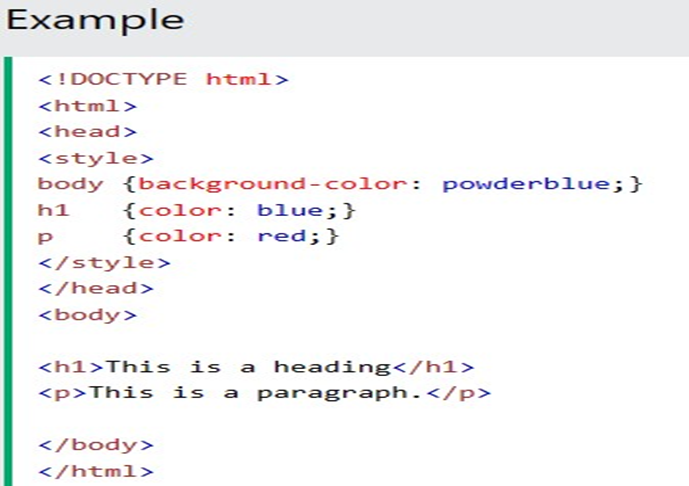
An internal CSS is used to define a style for a single HTML page. An internal CSS is defined in the <head> section of an HTML page, within a <style> element. The following example sets the text color of ALL the <h1> elements (on that page) to blue, and the text color of ALL the <p> elements to red. In addition, the page will be displayed with a "powderblue" background color:
External CSS
An external style sheet is used to define the style for many HTML pages. To use an external style sheet, add a link to it in the <head> section of each HTML page:
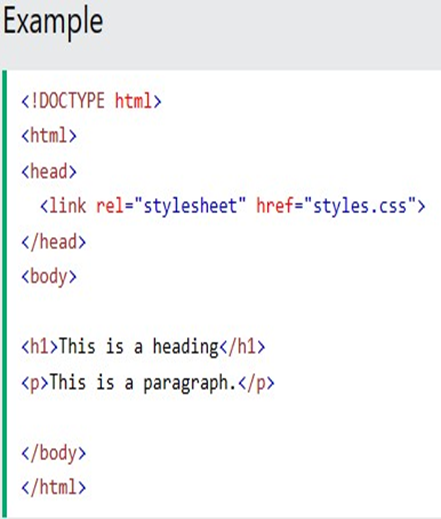
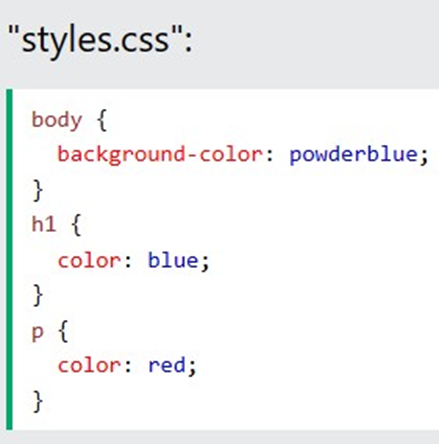
The external style sheet can be written in any text editor. The file must not contain any HTML code, and must be saved with a .css extension. Here is what the "styles.css" file looks like:
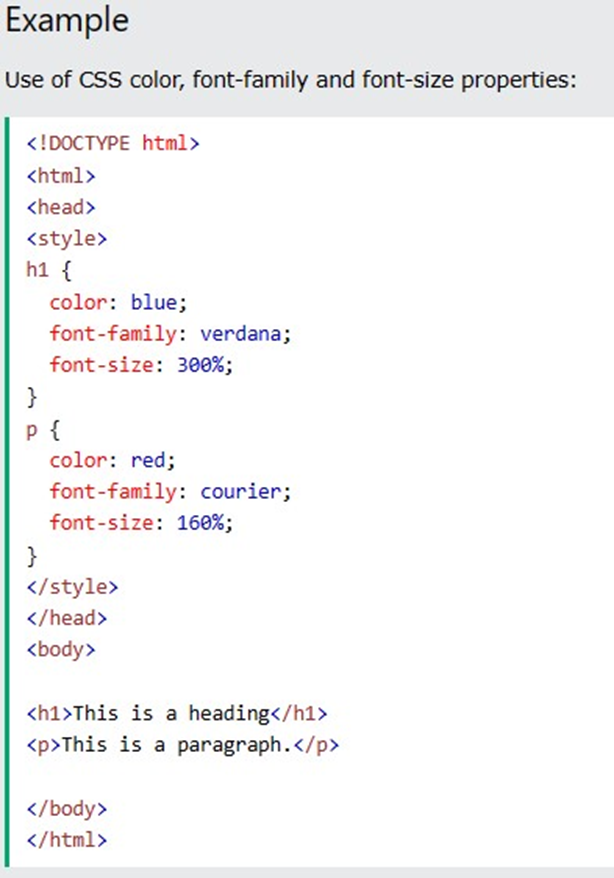
CSS Colors, Fonts and Size
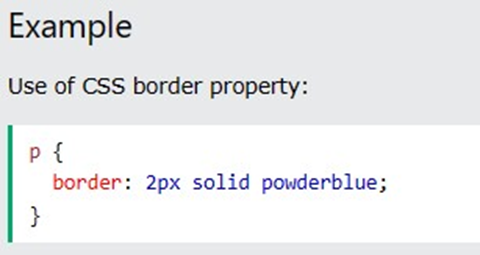
CSS Border
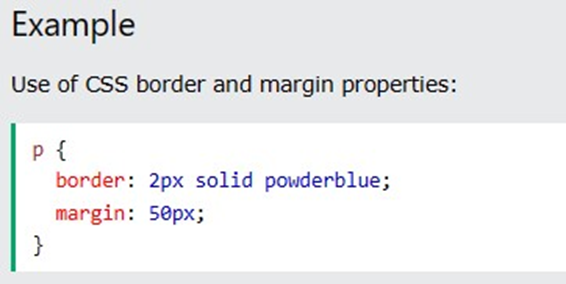
The CSS border property defines a border around an HTML element.
Tip: You can define a border for nearly all HTML elements.
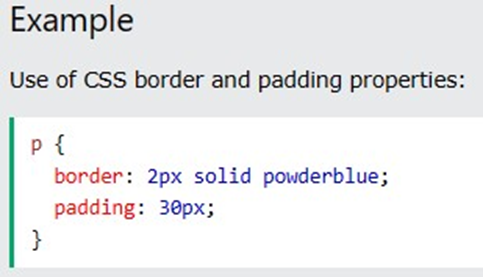
CSS Padding
The CSS padding property defines a padding (space) between the text and the border.
CSS Margin
The CSS margin property defines a margin (space) outside the border.
HTML Links
Links are found in nearly all web pages. Links allow users to click their way from page to page. HTML links are hyperlinks. You can click on a link and jump to another document. When you move the mouse over a link, the mouse arrow will turn into a little hand.
HTML Link-Syntax
The HTML <a> tag defines a hyperlink. It has the following syntax:
<a href="url">link text</a>
The most important attribute of the <a> element is the href attribute, which indicates the link's destination. The link text is the part that will be visible to the reader. Clicking on the link text, will send the reader to the specified URL address.
By default, links will appear as follows in all browsers:
• An unvisited link is underlined and blue
• A visited link is underlined and purple
• An active link is underlined and red
HTML Links- The Target Attributes
By default, the linked page will be displayed in the current browser window. To change this, you must specify another target for the link. The target attribute specifies where to open the linked document. The target attribute can have one of the following values:
• _self - Default. Opens the document in the same window/tab as it was clicked
• _blank - Opens the document in a new window or tab
• _parent - Opens the document in the parent frame
• _top - Opens the document in the full body of the window
Example:
<a href="https://www.google.com/" target="_blank">Visit Google!</a>
Activity: With Examples, Differentiate between Absolute URLs and Relative URLs
HTML Links- Use an image as a Link
To use an image as a link, just put the <img> tag inside the <a> tag:

HTML Image

HTML Image Syntax
The HTML <img> tag is used to embed an image in a web page. Images are not technically inserted into a web page; images are linked to web pages. The <img> tag creates a holding space for the referenced image. The <img> tag is empty, it contains attributes only, and does not have a closing tag. The <img> tag has two required attributes:
• src - Specifies the path to the image
• alt - Specifies an alternate text for the image
Iamge Size – Width and Height
You can use the style attribute to specify the width and height of an image.


Accessing Image in another Folder
If you have your images in a sub-folder, you must include the folder name in the src attribute:

Image Floating
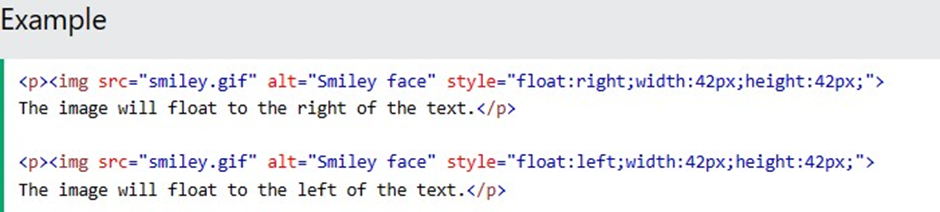
Use the CSS float property to let the image float to the right or to the left of a text:
HTML Background Image
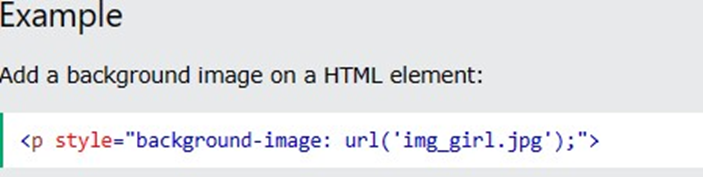
A background image can be specified for almost any HTML element. To add a background image on an HTML element, use the HTML style attribute and the CSS backgroundimage property:
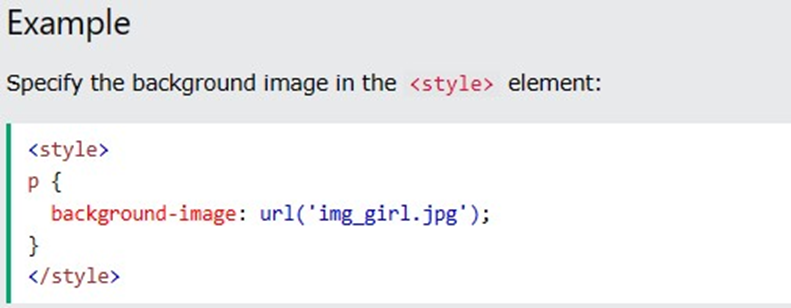
You can also specify the background image in the <style> element, in the <head> section:
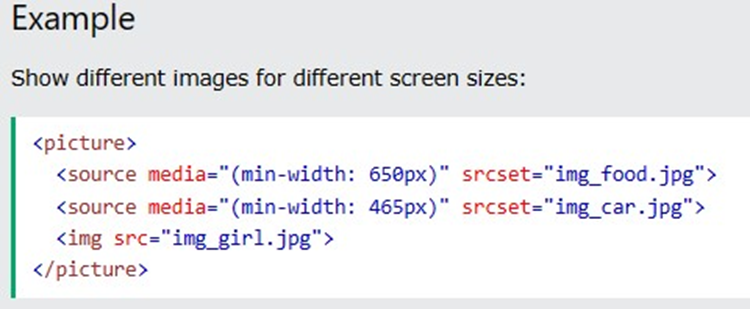
HTML <Picture> Element
The HTML <picture> element allows you to display different pictures for different devices or screen sizes. The HTML <picture> element gives web developers more flexibility in specifying image resources.
The <picture> element contains one or more <source> elements, each referring to different images through the srcset attribute. This way the browser can choose the image that best fits the current view and/or device. Each <source> element has a media attribute that defines when the image is the most suitable.