Module 1: Foundations of Mobile Application Development
| Site: | Newgate University Minna - Elearning Platform |
| Course: | Mobile Application Development |
| Book: | Module 1: Foundations of Mobile Application Development |
| Printed by: | Guest user |
| Date: | Saturday, 24 October 2026, 2:39 AM |
Description
This module introduces students to the fundamental concepts, technologies, and methodologies involved in mobile application development. It provides an overview of the mobile ecosystem, development frameworks, and key considerations for building mobile apps.
1. MODULE 1: FOUNDATIONS OF MOBILE APPLICATION DEVELOPMENT
INTEGRATED DEVELOPMENT ENVIRONMENT
An Integrated Development Environment (IDE) is a software application that provides a comprehensive environment for programmers to develop, test, and debug code. IDEs are designed to streamline the development process by integrating various tools into a single interface.
key aspects and features of IDEs
Definition of an IDE
An IDE is a software application that combines all the tools required for software development. It helps developers write, edit, test, and debug code more efficiently by offering a unified interface with essential tools and features.
Key Components of an IDE
1. Code Editor: The main interface where programmers write and edit source code. It often includes features like syntax highlighting, auto-completion, and code folding to enhance productivity.
2. Compiler/Interpreter: Converts the source code into machine-readable code. The compiler translates the code into an executable file, while the interpreter runs the code directly.
3. Debugger: Helps identify and fix errors in the code by allowing step-by-step execution, variable inspection, and breakpoints.
4. Build Automation Tools: Simplifies the process of compiling code, linking libraries, and creating executable.
5.
Version Control Integration: Many IDEs
support integration with version control systems like Git, allowing developers
to manage code changes and collaborate with teams.
6. Project Explorer/Navigator: A hierarchical view of files and resources in a project, making it easier to organize and navigate.
7. Plugins/Extensions: Extend the functionality of the IDE by adding support for additional languages, frameworks, or tools.
1.1. Features of Modern IDEs
Features of Modern IDEs
1. Syntax Highlighting: Differentiates keywords, variables, and functions with colors or styles.
2. Code Completion: Provides suggestions for completing code statements or variable names as you type.
3. Error Detection: Flags errors or warnings in real time to reduce runtime issues.
4. Refactoring Tools: Automates code restructuring, such as renaming variables or methods.
5. Code Templates: Offers pre-defined templates for common coding patterns.
6. Integrated Testing: Allows for unit testing and debugging within the IDE.
7. Cross-Platform Support: Some IDEs can be used across multiple operating systems.
TYPES OF IDES
1. Language-Specific IDEs: Designed for a specific programming language (e.g., PyCharm for Python, Eclipse for Java).
2. General-Purpose IDEs: Support multiple programming languages and frameworks (e.g., Visual Studio Code, IntelliJ IDEA).
3. Cloud-Based IDEs: Operate in a web browser, enabling coding from anywhere (e.g., Replit, GitHub Codespaces).
Advantages of Using an IDE
A. Increased Productivity: With all tools integrated, switching between them is minimized.
B. Error Reduction: Real-time error detection helps prevent mistakes.
C. Ease of Use: Features like drag-and-drop interfaces and visual debugging simplify complex tasks.
D. Collaboration: Version control systems and cloud-based IDEs make it easier to work in teams.
Disadvantages of Using an IDE
A. Resource Intensive: Some IDEs require significant system resources, which can slow down older machines.
B. Steep Learning Curve: Advanced features may be overwhelming for beginners.
C. Cost: Some IDEs are paid, especially those with enterprise-level features.
Popular IDEs
Widely used IDEs and their associated languages
1. Visual Studio Code: Supports multiple languages, lightweight and extensible.
2. Eclipse: Primarily for Java, but supports other languages with plugins.
3. PyCharm: Focused on Python development.
4. IntelliJ IDEA: Popular for Java and Kotlin.
5. NetBeans: Java and web application development.
6. Xcode: For macOS and iOS development.
7. Android Studio: For Android application development.
How to Choose an IDE
Project Requirements: Choose an IDE that supports the language and frameworks you’re using.
Ease of Use: If you’re a beginner, opt for an IDE with a user-friendly interface.
Community and Support: A large community ensures ample tutorials, plugins, and troubleshooting help.
Performance: Ensure the IDE runs smoothly on your system.
Importance of IDEs
Simplifies the software development lifecycle.
Boosts efficiency by automating repetitive tasks.
Reduces the learning curve for new programming languages.
Provides a standardized development workflow for teams2. SETTING UP DEVELOPMENT ENVIRONMENTS FOR ANDROID AND IOS
SETTING UP DEVELOPMENT ENVIRONMENTS FOR ANDROID
Setting Up Development Environments for Android
Introduction
Android development requires a properly configured environment to build, test, and debug apps. This guide covers setting up tools like Android Studio, SDK, emulators, and essential configurations for Windows, macOS, and Linux.
Prerequisites
Hardware
- 64-bit OS (Windows 8+, macOS 10.14+, or Linux).
- 8 GB RAM (16 GB recommended).
- 4 GB disk space (SSD preferred).
Software:
- Java (OpenJDK bundled with Android Studio).
- Internet connection for downloads.
Installing Android Studio
Download: Get the installer from (developer.android.com/studio](https://developer.android.com/studio).
Install
- Windows: Run `.exe`, follow prompts, select Android SDK and Emulator.
- macOS: Drag to Applications, configure SDK path.
- Linux: Unzip, run `./studio.sh`, and configure.
First Launch: Choose a theme (Light/Dark) and install SDK components.
Configuring Android SDK
- SDK Manager: Open via `Tools > SDK Manager`.
- Install SDK Platforms (latest stable API).
- Add SDK Tools:
- Android Emulator.
- Android SDK Build-Tools.
- Intel HAXM or Hyper-V (Windows Pro).
- Google Play Services (if needed).
Environment Variables (optional):
- Set `ANDROID_HOME` to SDK path (e.g., `~/Android/Sdk` on Linux).
Setting Up the Android Emulator (AVD)
1. AVD Manager: Open via `Tools > AVD Manager`.
2. Create Virtual Device:
- Select hardware profile (e.g., Pixel 6).
- Choose system image (e.g., Android 13 "Tiramisu" with Google APIs).
- Configure RAM (4 GB), storage (16 GB), and enable Hardware Acceleration.
Performance Tips:
- Use Quickboot Snapshots.
- Enable Vulkan for graphics (optional).
- Install HAXM (Windows/macOS) or KVM (Linux).
Connecting a Physical Device
1. Enable Developer Options:
- Tap `Build Number` 7 times in `Settings > About Phone`.
2. USB Debugging:
- Enable `Developer Options > USB Debugging`.
3. Drivers (Windows):
- Install OEM drivers (Samsung, Google, etc.).
4. Authorize Device: Allow connection via USB prompt.
Exploring Project Structure
- Key Directories:
- `app/src/main/java`: Java/Kotlin code.
- `app/src/main/res`: Resources (layouts, strings, images).
- `app/build.gradle`: Module-level dependencies.
- `AndroidManifest.xml`: App metadata.
Build Tools: Gradle
- Configure Dependencies: Edit `build.gradle` files.
- Add libraries (e.g., `implementation 'com. google.android.material:material:1.6.0'`).
- Sync Project: Click "Sync Now" in Android Studio.
Version Control with Git
1. Initialize Repo: `git init` in project root.
2. gitignore: Exclude `build/`, `.gradle/`, and local configs.
3. Integrate with Android Studio: Use `VCS > Enable Version Control`.
Additional Tools
-Firebase: Add via `Tools > Firebase`.
-Profiler: Monitor CPU, memory, and network usage.
-Third-Party Libraries: Use Jetpack Compose, Retrofit, or Glide via Gradle.
Testing Your Setup
1. Create New Project: Select "Empty Activity".
2. Run the App: Click ▶️ (target emulator/device).
3. Hello World: Verify app launches with "Hello, Android!".
Troubleshooting (INCASE ERROR)
- Emulator Issues:
- Enable virtualization in BIOS/UEFI.
- Reinstall HAXM/KVM.
- SDK Licenses: Run `sdkmanager --licenses` in terminal.
- Gradle Errors: Disable offline mode (`File > Settings > Build > Gradle`).
- USB Connection: Revoke debugging authorizations and reconnect.
Best Practices
- Update Regularly: SDK, plugins, and Android Studio.
- Use Emulator Snapshots for faster testing.
- Backup Projects with Git or cloud storage2.1. Setting Up Development Environments for iOS
Setting Up Development Environments for iOS
1. Hardware Requirements:
- Mac Computer: A Mac computer running macOS is a mandatory requirement for iOS development. Xcode, the primary development tool, is only available on macOS. Consider the processing power, RAM, and storage based on your project's complexity. A minimum of 8GB RAM and 256GB SSD storage is recommended, but 16GB RAM and 512GB SSD or more are preferable for larger projects and smoother performance.
- (Optional) iOS Device: While you can use simulators for initial testing, having a physical iOS device (iPhone, iPad, iPod Touch) is crucial for real-world testing, especially for features that rely on device-specific hardware (e.g., camera, GPS, accelerometer).
2. Software Requirements:
- macOS: Ensure your Mac is running a compatible version of macOS. Newer versions of Xcode often require newer macOS releases. Check Apple's developer documentation for compatibility information. Keeping your macOS updated is generally recommended.
- Xcode: Xcode is the integrated development environment (IDE) provided by Apple. It includes the compiler, debugger, simulators, Interface Builder (for designing user interfaces), and other essential tools. Download Xcode from the Mac App Store or the Apple Developer website (you might need an Apple Developer account for the latter). Install the latest stable version unless your project specifically requires an older one.
- Command Line Tools: Xcode usually installs these automatically, but you can verify or install them separately by running xcode-select --install in the Terminal. These tools are necessary for various development tasks, including Git integration.
- (Optional) Other IDEs/Text Editors: While Xcode is the primary tool, you might use other IDEs or text editors for specific tasks or preferences. For example, some developers use Visual Studio Code with extensions for working with certain file types or for collaborative coding. However, Xcode remains essential for building and deploying iOS apps.
3. Setting Up Xcode:
- Installation: Download and install Xcode from the Mac App Store or the Apple Developer website. The installation process can take some time due to the size of Xcode.
- First Launch: After installation, launch Xcode. You'll be prompted to install additional components, if necessary.
- Simulator Setup: Xcode comes with iOS simulators that allow you to test your apps on different iOS devices without needing the actual hardware. You can manage simulators through Xcode's "Open Developer Tool" menu (Xcode -> Open Developer Tool -> Simulators).
- Creating a New Project: In Xcode, you can create a new project by selecting "Create a new Xcode project." Choose the "App" template under the iOS tab to get started with a basic iOS application.
4. Apple Developer Account (Recommended):
- While you can start development without a paid Apple Developer account, it is required for testing on physical devices and for publishing your app on the App Store.
- You can enroll in the Apple Developer Program on the Apple Developer website. This involves an annual fee.
5. Version Control (Highly Recommended):
- Git: Use Git for version control to track changes to your code, collaborate with others, and easily revert to previous versions. Xcode has built-in Git support, or you can use command-line Git. Consider using a Git repository hosting service like GitHub, GitLab, or Bitbucket.
6. CocoaPods or Swift Package Manager (Dependency Management):
- CocoaPods: A popular dependency manager for Objective-C and Swift projects. It simplifies the process of integrating third-party libraries into your project.
- Swift Package Manager (SPM): Apple's native dependency manager for Swift projects. It's becoming increasingly popular and is often preferred for Swift-only projects.
7. Testing and Debugging:
- Xcode's Debugger: Xcode provides a powerful debugger that allows you to step through your code, inspect variables, and identify and fix bugs.
- Testing Frameworks: Consider using testing frameworks like XCTest for unit and UI testing to ensure the quality and stability of your app.
8. Key Considerations:
- Stay Updated: Keep your macOS, Xcode, and other development tools updated to benefit from the latest features, bug fixes, and security improvements.
- Learn the Basics: Familiarize yourself with the Swift or Objective-C programming language (Swift is recommended for new projects), the iOS SDK, and the Xcode IDE.
- Apple's Documentation: Refer to Apple's official developer documentation for comprehensive information on iOS development.
- Community Resources: Engage with the iOS developer community through forums, online courses, and conferences to learn from experienced developers and stay up-to-date with best practices.
Example Workflow (Creating a Simple App):
- Install macOS and Xcode.
- Create a new Xcode project (iOS App template).
- Design the user interface using Interface Builder (drag and drop UI elements).
- Write code in Swift to implement the app's functionality.
- Build and run the app in the simulator.
- Test and debug the app.
- (If you have a developer account) Test on a physical device.
- (If you want to publish) Prepare the app for App Store submission and submit it to Apple for review.
3. Mobile Application
What is Mobile Application
A mobile application (app) is a software application developed and designed to run on a mobile device, such as a smartphone or tablet. It's a computer program specifically optimized for the limitations and capabilities of mobile devices,
TYPES OF MOBILE APPLICATIONS
Mobile applications can be categorized in two main ways: by their functionality and by the way they are developed.
By Functionality
1. Lifestyle
These apps help users manage their daily lives. Examples include fitness trackers, meal planning apps, and budgeting apps.
2. Social Media
These apps allow users to connect with friends and family, share photos and videos, and stay up-to-date on current events. Examples include Facebook, Instagram, and Twitter.
3. Utility
These apps provide users with essential tools and services. Examples include weather apps, maps, and flashlight apps.
4. Games
These apps provide entertainment and recreation for users. Examples include puzzle games, racing games, and role-playing games.
5. Productivity
These apps help users get things done. Examples include to-do list apps, note-taking apps, and calendar apps.
6. News/Information
These apps keep users informed on current events, weather, finances, and various topics. Examples include news apps and stock market trackers. BBC News, Reuters etc
7. Entertainment Apps:
Provide entertainment content such as videos, music, games, and books.
Examples: Netflix, Spotify
8. Finance Apps:
Help users manage their finances, investments, and banking.
Examples: PayPal, Mint
3.1. TYPES OF MOBILE APPLICATIONS BASED ON THE WAY THEY ARE DEVELOPED.
TYPES OF MOBILE APPLICATIONS BASED ON THE WAY THEY ARE DEVELOPED.
Three types of mobile apps drive app development – native, web, or hybrid. And while each one has a different structure and takes a different approach to code, they also overlap in several ways. There are three basic types of mobile apps if we categorize them by the technology used to code them or There are three main ways that mobile applications are developed.
1. Native mobile apps
Native app development serves a single operating system or platform. And they use a programming language that’s specific to that platform or operating system. This is usually a choice of iOS, Android, or Windows Phone. And in practice, that means a native app will use the specific features of a platform’s native API but also rely on its ecosystem to support things such as app distribution. So, a native app built for Android will use the codebase for the Google Play store, for example. But because by customizing to the functionalities of specific operating systems, native apps can offer enhanced user experiences.
Native apps run straight from devices. As a result, they can support strong performance, high levels of security, and advanced features ‘native’ to the specific operating system. This also means there are likely to be fewer bugs to fix and greater performance capabilities. Some of the most common codebases seen across the three operating systems for different types of mobile apps include the following:
• iOS: Programming languages include Swift, Python, and Objective-C
• Android: Programming languages include Kotlin and Java
• Windows Phone: Programming languages include C# and .NET
Gaming apps often take a native app approach. And by building these types of mobile apps in a native form, on either iOS or Android, gamers can expect faster access times while accessing device systems and cameras. Native gaming apps also offer the advantage of better security and compliance, a stable and satisfying player experience, and the opportunity to scale and boost ROI fast. Because they’re built for just one platform, you cannot mix and match – say, use a Blackberry app on an Android phone or use an iOS app on a Windows phone.
Examples of Native Mobile App
iOS Native Apps:
1. Instagram
Description: Photo and video sharing social network.
2. Apple Maps
Description: Navigation and map service by Apple.
3. Safari
Description: Web browser developed by Apple.
4. GarageBand
Description: Music creation studio for iOS.
5. Health
Description: App to track health and fitness metrics.
6. iMessage
Description: Messaging app by Apple
Android Native Apps:
1. Google Maps
Description: Navigation and mapping service by Google.
2. WhatsApp
Description: Messaging and calling app.
3. Spotify
Description: Music streaming service.
4. Google Photos
Description: Photo storage and sharing service.
5. Snapchat
Description: Photo and video messaging app.
6. Google Drive
Description: Cloud storage and file sharing service.
Technology Used: Native apps are coded using a variety of programming languages. Some examples include: Java, Kotlin, Python, Swift, Objective-C, C++, and React.
Pros (Advantages): Because of their singular focus, native apps have the advantage of being faster and more reliable in terms of performance. They’re generally more efficient with the device’s resources than other types of mobile apps. Native apps utilize the native device UI, giving users a more optimized customer experience.
And because native apps connect with the device’s hardware directly, they have access to a broad choice of device features like Bluetooth, phonebook contacts, camera roll, NFC, and more.
Cons (Disadvantages): However, the problem with native apps lies in the fact that if you start developing them, you have to duplicate efforts for each of the different platforms. The code you create for one platform cannot be reused on another. This drives up costs. Not to mention the effort needed to maintain and update the codebase for each version.
And then, every time there’s an update to the app, the user has to download the new file and reinstall it. This also means that native apps do take up precious space in the device’s storage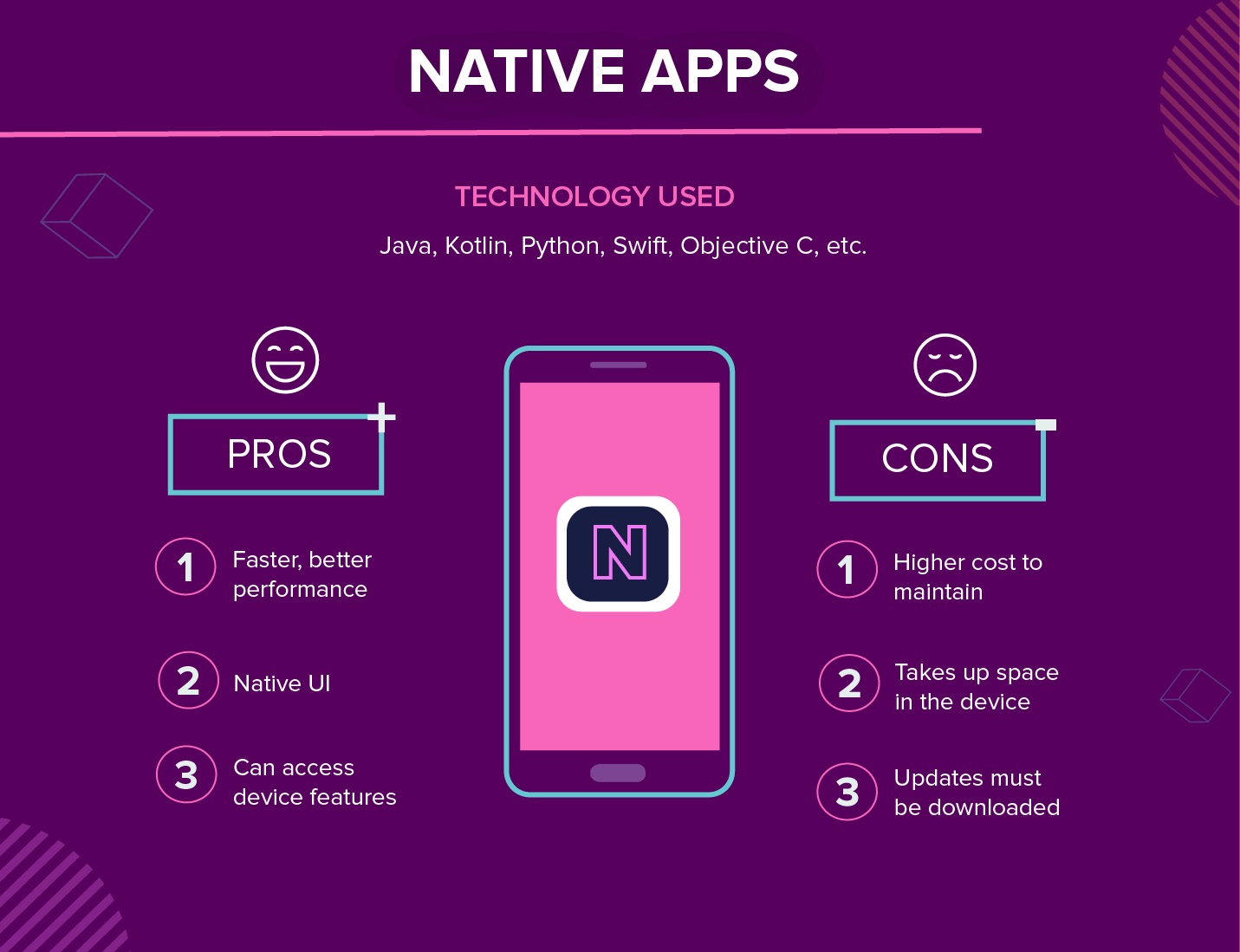
3.2. Web Apps
2. Web Apps
Web
apps behave similarly to native apps but are accessed via a web browser on your
mobile device. Web apps
are types of mobile apps that draw from web-based technologies. They’re
accessed through a mobile device’s web browser, so avoid any download or
install onto a device. They’re also internet-enabled which gives them added
flexibility and a more responsive design that can work on any mobile device or
operating system. They’re
not standalone apps in the sense of having to download and install code into your
device. They’re actually responsive websites that adapt its user interface to
the device the user is on. In fact, when you come across the option to
“install” a web app, it often simply bookmarks the website URL on your device.
One kind of web app is the progressive web app (PWA), which is basically a
native app running inside a browser.
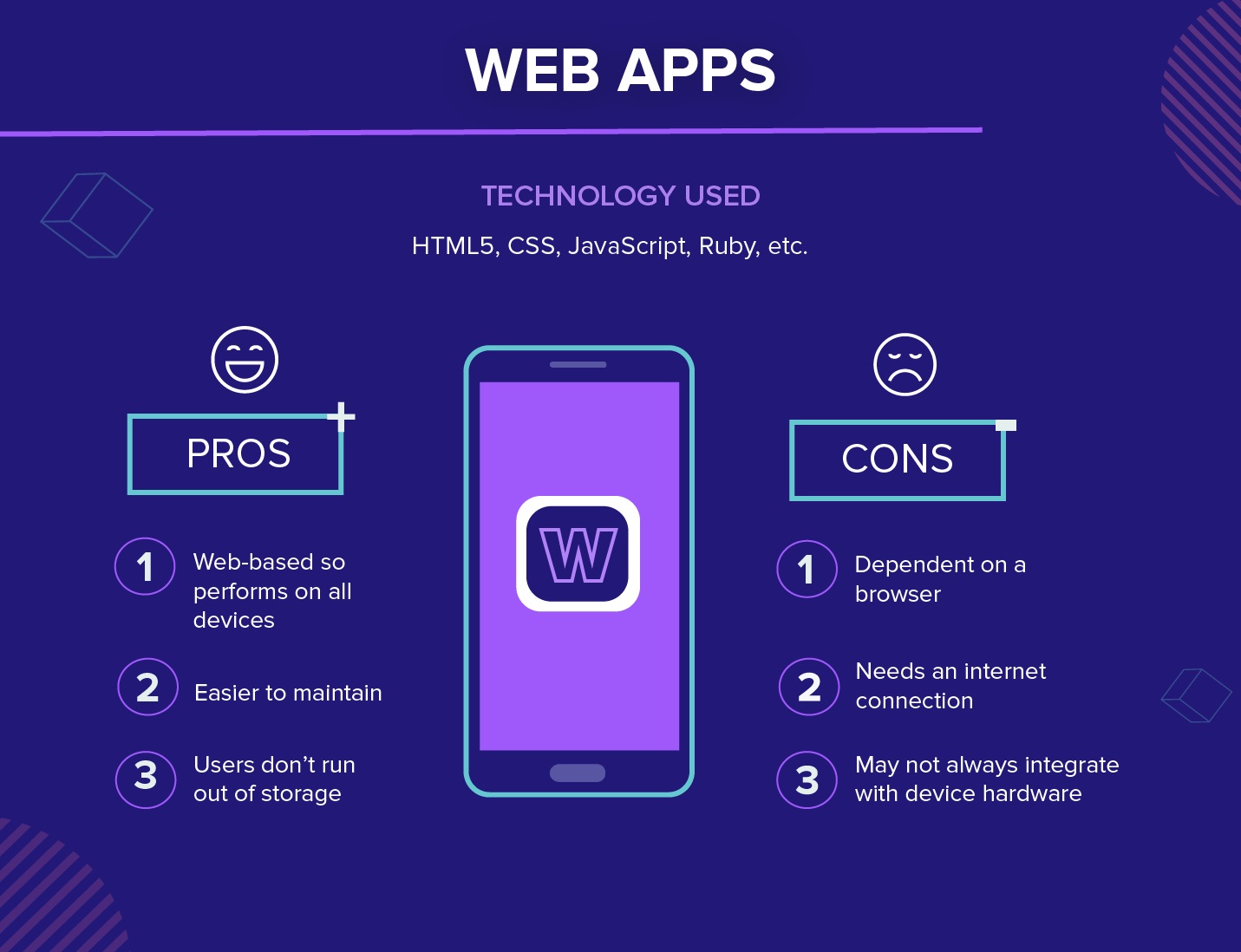
Technology Used: Web apps are
designed using HTML5, CSS, JavaScript, Ruby, and similar programming languages
used for web work.
Examples:
Web Apps
1. AliExpress
Description: E-commerce platform for buying products online.
2. BBC News
Description: News website providing global news updates.
3. Google Docs
Description: Online document editor and collaboration tool.
4. Trello
Description: Project management and collaboration tool.
5. Canva
Description: Online design and publishing tool.
6. Pixlr
Description: Web-based photo editing tool.
Pros: Because it’s web-based, there is
no need to customize to a platform or OS. This cuts down on development costs.
Plus, there’s nothing to download. They won’t take up space on your device
memory like a native app, making maintenance easier – just push the update live
over the web. Users don’t need to download the update at the app store.
Cons: But this is also pertinent: web
apps are entirely dependent on the browser used on the device. There will be
functionalities available within one browser and not available on another,
possibly giving users varying experiences.
And because they’re shells for websites, they won’t completely work offline.
Even if they have an offline mode, the device will still need an internet
connection to back up the data on your device, offer up any new data, or
refresh what’s on screen.
3.3. Hybrid Apps
3. Hybrid Apps
And then there are the hybrid apps. These are web apps that look and feel like native apps. They might have a home screen app icon, responsive design, fast performance, even be able to function offline, but they’re really web apps made to look native. Hybrid Apps are built on a single platform and distributed across various app stores such as Google Play store or Apple’s app store similar to Native apps. Hybrid apps are best used when you want to build apps that do not require high-performance, full device access apps. Native apps still have an edge over hybrid apps since they are device and OS focused apps are suitable for high performance.
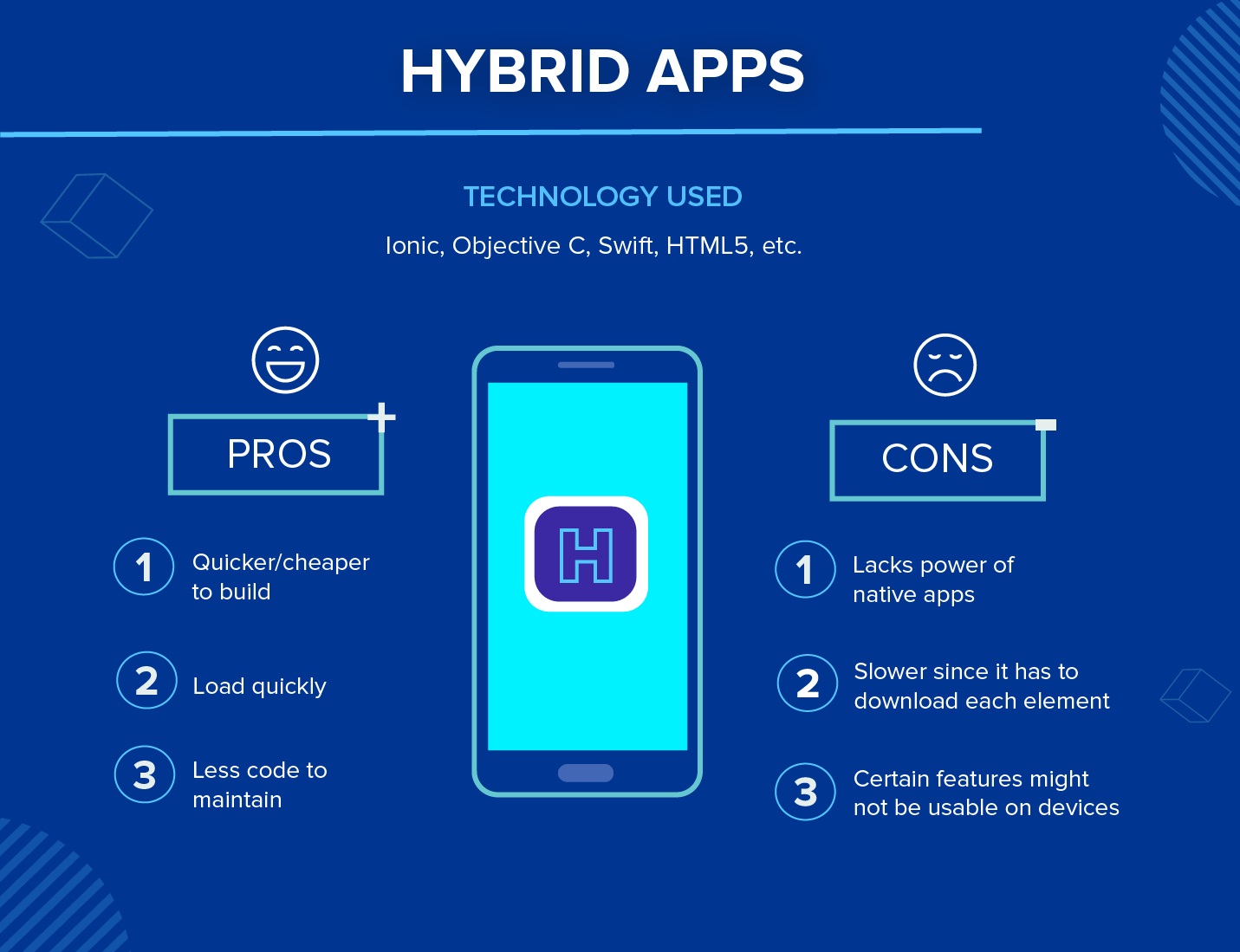
Technology Used: Hybrid apps use a mixture of web technologies and native APIs. They’re developed using: Ionic, Objective C, Swift, HTML5, and others.
Examples:
Hybrid Apps
1. Uber
-Description: Ride-sharing and transportation service.
2. Twitter
Description: Social networking service for sharing short messages.
3. Airbnb
-Description: Platform for booking accommodations.
4. Ionic Framework Showcase
Description: Various apps developed using the Ionic framework.
5. Evernote
Description: Note-taking and organization app.
6. Instagram
Description: Initially native, now partly hybrid to enhance development efficiency across platforms.
Pros: Building a hybrid app is much quicker and more economical than a native app. As such, a hybrid app can be the minimum viable product – a way to prove the viability of building a native app. They also load rapidly, are ideal for usage in countries with slower internet connections, and give users a consistent user experience. Finally, because they use a single code base, there is much less code to maintain.
Cons: Hybrid apps might lack in power and speed, which are hallmarks of native apps.
3.4. Cross-Platform Development
4. Cross-Platform Development
Cross-platform mobile apps fall under the category of Cross-Platform Apps in mobile app development. These apps are designed to work on multiple operating systems, such as iOS and Android, using a single codebase.
Note: Understanding a Codebase in Mobile App Development
A codebase in mobile app development refers to the structured collection of source code, resources, and dependencies that make up a mobile application. It includes everything needed to build, test, and deploy an app for platforms like Android (using Java/Kotlin) or iOS (using Swift/Objective-C), and even cross-platform frameworks like Flutter (Dart), React Native (JavaScript/TypeScript), or Xamarin (.NET/C#).
They leverage frameworks that allow developers to write code once and deploy it across different platforms, making development more efficient and cost-effective.
Examples of Cross-Platform Apps and Frameworks
1. React Native: Developed by Facebook, allows for building native apps using React and JavaScript.
Example: Facebook Ads Manager
• Allows advertisers to manage their ad campaigns across Facebook's platforms. Built using React Native, it provides a consistent user experience on both iOS and Android.
• Example: Instagram
• Initially native, Instagram has integrated React Native to streamline development across iOS and Android.
2. Flutter:
Developed by Google, uses the Dart programming language to build natively compiled applications for mobile, web, and desktop from a single codebase
• Example: Google Ads
• Helps users manage their Google ad campaigns. Built using Flutter, it offers a unified experience on both iOS and Android.
• Example: Alibaba
• E-commerce app offering a seamless shopping experience across different platforms using Flutter.
3. Xamarin:
Owned by Microsoft, allows developers to use C# and .NET to build apps for iOS, Android, and Windows.
• Example: Skype
• Communication app using Xamarin to provide voice and video calling, messaging, and file sharing across multiple platforms.
• Example: Microsoft Teams
• Collaboration and communication platform that uses Xamarin for a consistent experience on iOS, Android, and Windows.
4. Ionic:
Uses web technologies (HTML, CSS, JavaScript) to build hybrid mobile apps
• Example: Sworkit
• Fitness app offering personalized workout plans, using the Ionic framework to deliver a consistent experience on both iOS and Android.
• Example: Pacifica
• Mental health app that provides tools for managing stress, anxiety, and depression, built with Ionic to ensure cross-platform compatibility.
Benefits of Cross-Platform Apps
v Effective:
Developing a single codebase for multiple platforms reduces development and maintenance costs compared to building separate native apps for each platform.
v Faster Development:
A single codebase speeds up the development process, allowing for quicker deployment and updates across platforms.
v Consistent User Experience:
Ensures a uniform look and feel across different platforms, enhancing the user experience.
v Wider Audience Reach:
By supporting multiple platforms, cross-platform apps can reach a broader audience, increasing market penetration.
Limitations of Cross-Platform Apps
v Performance:
May not be as optimized as native apps, potentially leading to slower performance, especially for resource-intensive applications.
v Platform-Specific Features:
Limited access to some platform-specific features and APIs, which can restrict functionality compared to native apps.
v Complexity:
Managing a single codebase that needs to function seamlessly across different platforms can introduce complexity in development and testing.
v User Interface (UI) Consistency:
While cross-platform frameworks strive for a consistent UI, subtle differences between platforms can sometimes result in a less polished experience.
Cross-platform mobile apps represent a balanced approach, offering many advantages of both native and web apps while aiming to mitigate their respective limitations.
These are tools and frameworks that allow developers to create apps that run on multiple operating systems (iOS, Android, and sometimes others) from a single codebase.
3.5. DIFFERENCES BETWEEN NATIVE, WEB APP, HYBRID APP AND CROSS PLATFORM APPLICATION DEVELOPMENT.
DIFFERENCES BETWEEN NATIVE, WEB APP, HYBRID APP AND CROSS PLATFORM APPLICATION DEVELOPMENT.
|
Feature |
Native App Development |
Web App Development |
Hybrid App Development |
Cross-Platform App Development |
|
Platform |
Single platform (iOS or Android) |
Web browser |
Single codebase for web view |
Single codebase for multiple platforms |
|
Development Language |
Platform-specific languages (Swift/Objective-C for iOS, Java/Kotlin for Android) |
HTML, CSS, JavaScript |
Web technologies (HTML, CSS, JavaScript) + native code for some features |
Frameworks like React Native, Flutter |
|
Performance |
Best performance and user experience |
Slower, relies on internet connectivity |
Can be slower than native, but faster than web apps |
Good performance, might have slight limitations compared to native |
|
User Interface (UI) |
Native look and feel, integrates seamlessly with device features |
Web-based UI, might not feel as native |
Mix of native and web UI |
Can achieve native-like UI with good frameworks |
|
Offline Functionality |
Can work offline (data can be stored locally) |
Limited offline functionality |
Limited offline functionality |
Can work offline for some features depending on framework |
|
Development Cost |
Higher due to separate codebases for different platforms |
Lower, single codebase |
Lower than native, but higher than web apps |
Lower than native development |
|
Development Time |
Longer due to separate codebases |
Faster development |
Faster than native |
Faster than native development |
|
App Store Approval |
Required for each platform (iOS App Store, Google Play Store) |
Not required |
Not required |
Required for each platform where you want to publish |
|
Examples |
Instagram, Facebook, Gmail |
Gmail web app, Twitter web app |
Some news apps, social media lite versions |
React Native apps (Facebook, Uber), Flutter apps (Alibaba, WeChat) |
Benefits of Mobile Applications
Mobile applications offer a wide range of advantages for both users and businesses.
key benefits:
• Convenience: Apps provide on-the-go access to information, services, and entertainment. Users can shop, bank, hail rides, or order food, all from their smartphones.
• Enhanced User Experience: Apps can be designed with a user-friendly interface specifically for mobile devices, offering a more intuitive and engaging experience compared to traditional websites.
• Increased Efficiency: Mobile apps can streamline tasks and processes, saving users time and effort. For instance, budgeting apps can help manage finances, and to-do list apps can keep users organized.
• Improved Connectivity: Apps can facilitate communication and interaction between users, businesses, and organizations. Social media apps connect people, while business apps allow customers to easily reach companies for support or inquiries.
• Personalized Experience: Many apps leverage user data to personalize the experience. This can include recommending products, tailoring content feeds, or offering location-based services.
• Offline Functionality: Some apps can function even without an internet connection, allowing users to access features or stored data when online connectivity is unavailable.
• Push Notifications: Apps can send timely alerts and updates directly to users' devices, keeping them informed and engaged.
• Location-Based Services: Apps can leverage GPS technology to provide location-specific features and recommendations, such as finding nearby restaurants or offering directions.
• Augmented Reality (AR) and Virtual Reality (VR): Mobile apps can integrate AR and VR experiences, creating immersive features and gamified experiences.
Limitations of Mobile Applications
Despite their benefits, mobile applications also have some limitations:
• Cost: Developing and maintaining a high-quality mobile app can be expensive, especially for native apps designed for specific platforms.
• Security and Privacy Concerns: Mobile apps often collect user data, which raises concerns about privacy and security. Users should be cautious about the data they share and choose apps with strong security practices.
• Battery Drain: Many apps can be resource-intensive, leading to faster battery drain on mobile devices.
• Data Usage: Streaming content, downloading data, and using location services can quickly consume mobile data plans. Users on limited data plans need to be mindful of app usage.
• Screen Size Limitations: Mobile screens are smaller than desktops, which can limit the complexity of tasks or information displayed on apps.
• App Overload: With millions of apps available, users can experience information overload or difficulty finding the right app for their needs.
• Limited Offline Functionality: While some apps offer offline features, not all functionalities work without an internet connection.
• Device Compatibility: Some apps may not be compatible with all devices or operating systems, potentially excluding certain users.
• Addiction and Attention Spans: Excessive app usage can lead to addiction or shortened attention spans.
Finding the Balance:
Mobile applications offer a powerful tool for enhancing our lives, but it's important to be aware of their limitations and use them responsibly. By understanding both the benefits and drawbacks, you can make informed choices about which apps to use and how to integrate them into your daily routine.
4. LECTURE 2: MOBILE OPERATING SYSTEMS
MOBILE OPERATING SYSTEMS
A mobile operating system (OS) is the software that powers smartphones, tablets, and other mobile devices. It acts as the foundation for all the apps you use and manages the device's hardware and software resources. Here's a detailed breakdown of mobile OS
Core functionalities of a mobile OS:
• Application Management: The OS installs, runs, and manages apps on the device. It controls access to hardware resources and ensures smooth communication between apps and the device.
• Memory Management: The OS allocates and manages memory for different apps and processes running on the device. It prioritizes tasks and ensures efficient memory usage.
• Security: The OS provides security features to protect the device from malware, unauthorized access, and data breaches. It implements features like app permissions and sandboxing to isolate apps from each other.
• User Interface (UI): The OS provides a user interface for interacting with the device. This includes the home screen, menus, icons, and animations that users see and use to navigate the device.
• Hardware Communication: The OS acts as a bridge between the software and hardware components of the device. It manages communication with the processor, memory, camera, sensors, and other hardware components.
• Networking: The OS enables the device to connect to cellular networks and Wi-Fi. It manages data transfer and internet connectivity.
• Power Management: The OS optimizes battery usage by controlling background processes and adjusting screen brightness.
4.1. POPULAR OR MAJOR MOBILE OPERATING SYSTEMS
ANDROID
Android is a software package and linux based operating system for mobile devices such as tablet computers and smart phones released first version in 2007. It is developed by Google and later the OHA (Open Handset Alliance). Android is a complete set of software for mobile devices such as tablet computers, notebooks, smart phones, electronic book readers, set-top boxes etc. It contains a linux-based Operating System, middleware and key mobile applications. It can be thought of as a mobile operating system. But it is not limited to mobile only. It is currently used in various devices such as mobiles, tablets, televisions etc.
An open-source OS developed by Google, it's the most widely used mobile OS globally. It's known for its customization options, open app ecosystem (Google Play Store), and variety of devices from different manufacturers. Android is an operating system that powers mobile devices and is one of the most popular mobile platforms today. Android platform runs on hundreds of millions of mobile devices throughout the world. It's the largest installed operating system of any mobile operating system and growing rapidly day by day. You can develop apps and games using Android and it gives you an open marketplace for distributing your apps and games instantly.
Android is the operating system for powering screens of all sizes.
Java language is mainly used to write the android code even though other languages can be used. The goal of android project is to create a successful real-world product that improves the mobile experience for end users. There are many code names of android such as Lollipop, Kitkat, Jelly Bean, Ice cream Sandwich, Froyo, Ecliar, Donut etc which is covered in next page.
ANDROID ARCHITECTURE
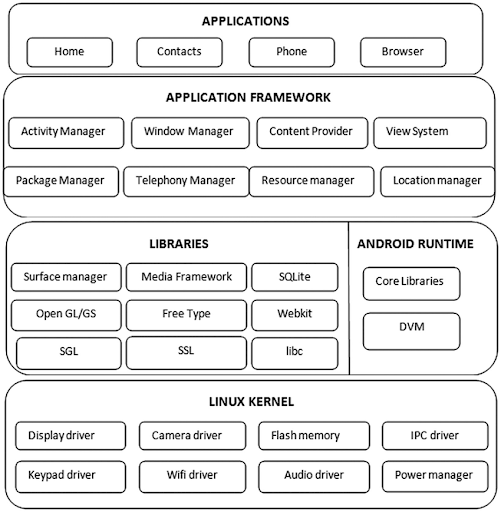
Mobile Application Development Android is structured in the form of a software stack comprising applications, an operating system, run-time environment, middleware, services and libraries. Each layer of the stack, and the corresponding elements within each layer, are tightly integrated and carefully tuned to provide the optimal application development and execution environment for mobile devices.
4.2. THE LINUX KERNEL
THE LINUX KERNEL
Positioned at the bottom of the Android software stack, the Linux Kernel provides a level of abstraction between the device hardware and the upper layers of the Android software stack. Based on Linux version 2.6, the kernel provides pre-emptive multitasking, low-level core system services such as memory, process and power management in addition to providing a network stack and device drivers for hardware such as the device display, Wi-Fi and audio.
ANDROID RUNTIME – ART
When an Android app is built within Android Studio it is compiled into an intermediate byte-code format (DEX format). When the application is subsequently loaded onto the device, the Android Runtime (ART) uses a process referred to as Ahead-of-Time (AOT) compilation to translate the byte-code down to the native instructions required by the device processor. This format is known as Executable and Linkable Format (ELF).
Each time the application is subsequently launched, the ELF executable version is run, resulting in faster application performance and improved battery life.
This is the third section of the architecture and available on the second layer from the bottom. This section provides a key component called Dalvik Virtual Machine (DVM) which is a kind of Java Virtual Machine specially designed and optimized for Android. The Dalvik VM makes use of Linux core features like memory management and multi- threading (Multithreading refers to a programming technique where multiple threads of execution exist within a single application. Multithreading is just one way to achieve concurrency in Java. Concurrency can also be achieved through other means, such as multiprocessing, asynchronous programming, or event-driven programming.), which is intrinsic in the Java language. The Dalvik VM enables every Android application to run in its own process, with its own instance of the Dalvik virtual machine.
The Android runtime also provides a set of core libraries which enable Android application developers to write Android applications using standard Java programming language.
ANDROID LIBRARIES
In addition to a set of standard Java development libraries
(providing support for such general-purpose tasks as string handling,
networking and file manipulation), the Android development environment also
includes the Android Libraries. These are a set of Java-based libraries that
are specific to Android development.
android.app − Provides access to the application model and is the
cornerstone of all
Android applications.
android.content − Facilitates content access, publishing and messaging
between
applications and application components.
android.database − Used to access data published by content providers and
includes
SQLite database management classes.
android.opengl − A Java interface to the OpenGL ES 3D graphics rendering
API.
android.os − Provides applications with access to standard operating
system services
including messages, system services and inter-process communication.
android.text − Used to render and manipulate text on a device display.
android.view − The fundamental building blocks of application user
interfaces.
android.widget − A rich collection of pre-built user interface components
such as
buttons, labels, list views, layout managers, radio buttons etc.
android.webkit − A set of classes intended to allow web-browsing
capabilities to be
built into applications.
Having covered the Java-based core libraries in the Android runtime, it is now
time to turn
our attention to the C/C++ based libraries contained in this layer of the
Android software
stack.
C/C++ LIBRARIES
The Android runtime core libraries are Java-based and provide the primary APIs for developers writing Android applications. It is important to note, however, that the core libraries do not perform much of the actual work and are, in fact, essentially Java ―wrappers‖ around a set of C/C++ based libraries.
APPLICATION FRAMEWORK
The Application Framework is a set of services that collectively form the environment in which Android applications run and are managed. This framework implements the concept that Android applications are constructed from reusable, interchangeable and replaceable components. This concept is taken a step further in that an application is also able to publish its capabilities along with any corresponding data so that they can be found and reused by other applications.
The Android framework includes the following key services −
• Activity Manager − Controls all aspects of the application lifecycle and activity stack.
• Content Providers − Allows applications to publish and share data with other
• applications.
• Resource Manager − Provides access to non-code embedded resources such as
• strings, color settings and user interface layouts.
• Notifications Manager − Allows applications to display alerts and notifications to the
• user.
• View System − An extensible set of views used to create application user interfaces.
Capacities (What Android OS can do):
• Application Management: Install, run, and manage apps. This is the core functionality that allows users to utilize various apps for different purposes.
• Memory Management: Efficiently allocates and manages memory for apps and background processes to ensure smooth device operation. This capacity ensures efficient use of device resources for multitasking and app usage.
• Security: Provides a multi-layered security approach, including app permissions, sandboxing, Google Play Protect scans, and security updates. These capacities work together to safeguard devices from potential threats.
• User Interface (UI) Customization (core level): Offers the basic building blocks for customizing the UI, including a home screen, app drawer, notification bar, and the ability to change wallpapers. This capacity lays the foundation for further user customization through features.
• Hardware Communication: Acts as a bridge between the software and hardware components, enabling functionalities like camera usage, sensor data access, and display control. This capacity allows the software to interact with the physical components of the device.
• Networking: Connects devices to cellular networks and Wi-Fi for internet access, data transfer, and online services. This capacity provides the foundation for internet connectivity and online functionality.
• Power Management: Optimizes battery usage by controlling background processes, adjusting screen brightness, and offering battery saver modes. This capacity helps conserve battery life and extend device usage time.
Features (How users interact with Android):
• App Management (user-facing): Installing apps from the Google Play Store or other sources (with security considerations for sideloading). This feature allows users to actively choose and download apps they want to use.
• Home Screen and App Drawer Customization: Users can personalize the home screen with widgets, shortcuts, and launchers for a more convenient and visually appealing experience. This feature builds upon the core UI customization capacity to provide user control over the home screen layout and functionality.
• Notifications: Alerting users about new messages, updates, and events. Users can customize notification settings to manage how they receive alerts. This feature translates the core notification capacity into a user-friendly way to receive important information.
• Widgets: Miniature apps on the home screen providing quick access to information and functionalities. This feature leverages the core app management capability to offer a more convenient way to interact with specific app functionalities.
• Multitasking: Switching between apps and keeping multiple apps running in the background. This feature builds upon the core memory management capacity to allow users to work with multiple apps simultaneously.
• Google Assistant: A built-in virtual assistant for answering questions, setting reminders, and controlling devices. This user-facing feature utilizes the core functionalities of the OS to perform actions and access information based on user needs.
4.3. iOS
iOS
Apple's proprietary OS designed exclusively for iPhones, iPads, and iPod Touches. It's known for its user-friendly interface, tight integration with Apple's hardware and services, and a strong focus on security and privacy.
Apple's iOS is one of the most popular smartphone operating systems, second only to Android. It runs on Apple hardware, including iPhones, iPad tablets and iPod Touch media players.
iOS (formerly iPhone OS) is a mobile operating system developed by Apple exclusively for its smartphones. It was unveiled in January 2007 for the first-generation iPhone, launched in June 2007.
It is the operating system that powers many of the company's mobile devices, including the iPhone. It was also used on iPads (introduced: January 2010; availability: April 2010) until iPadOS was introduced in 2019, and on the iPod Touch devices, which were discontinued in mid-2022. It is the world's second-most widely installed mobile operating system, after Android. It is the basis for three other operating systems made by Apple: iPadOS, tvOS, and watchOS
As of December 2023, Apple's App Store contains more than 3.8 million iOS applications. These mobile apps have collectively been downloaded more than 130 billion times.
iOS is based on macOS. Like macOS, it includes components of the Mach microkernel and FreeBSD. It is a Unix-like operating system. Although some parts of iOS are open source under the Apple Public Source License and other licenses,[16] iOS is proprietary software.
Major versions of iOS are released annually. The current stable version, iOS 17, was released to the public on September 18, 2023.
Capacities (The Powerhouse Behind iOS):
• Application Management: Installs, runs, and manages apps downloaded from the App Store (stricter review process compared to Android).
• Memory Management: Efficiently allocates memory for apps and background processes to ensure smooth device operation.
• Security: Provides a comprehensive security approach with features like:
• Sandboxing to isolate apps and prevent unauthorized access.
• Secure Enclave hardware chip to store sensitive data securely.
• Timely software updates for security patches and bug fixes.
• User Interface (UI) Foundation: Offers the core building blocks for the UI, including a home screen, app library, notification center, and Control Center.
• Hardware Communication: Acts as a bridge between the software and hardware components, enabling functionalities like:
• Camera access for photos and videos.
• Touch ID/Face ID for biometric authentication.
• Motion coprocessor for efficient motion tracking.
• Networking: Connects devices to cellular networks and Wi-Fi for internet access, data transfer, and online services.
• Power Management: Optimizes battery usage by controlling background processes, adjusting screen brightness, and offering low-power mode.
• File Management: Provides a closed file system with limited user access compared to Android, prioritizing security over extensive user control.
• Device Management: Integrates with tools for enterprise deployment, allowing centralized configuration and management.
• Accessibility Features: Offers functionalities like screen readers, zoom, and display adjustments to cater to users with disabilities.
• Location Services: Leverages GPS and other location services for features like maps, navigation, and geotagging.
• Bluetooth and Connectivity: Supports Bluetooth for connecting to wireless accessories and offers functionalities like:
• AirDrop for secure file sharing between Apple devices.
• iCloud for cloud storage and syncing across devices.
• Handoff for seamless task continuation between Apple devices.
Security (Beyond the Basics):
• Secure Enclave: This hardware chip acts like a vault, storing sensitive data like fingerprints, passwords, and encryption keys in a tamper-proof environment. This strengthens security by isolating this critical data from the main operating system.
• App Sandboxing: Each app on your iPhone or iPad runs within its own sandbox, limiting its access to other apps' data and system resources. This prevents malicious apps from compromising your device or stealing your information.
• Find My iPhone: This built-in feature allows you to locate, lock, erase, or play a sound on your lost or stolen device. It utilizes iCloud and GPS to track the device's location, helping you recover it or protect your data.
• Software Update Security: Apple prioritizes timely software updates that include security patches and bug fixes. These updates address vulnerabilities discovered by Apple or security researchers, making it harder for attackers to exploit them.
Hardware Communication (Enhanced Functionality):
• Touch ID/Face ID: These biometric authentication methods offer a secure and convenient way to unlock your device or authorize payments using your fingerprint or facial recognition.
• Motion Coprocessor: This dedicated chip handles data from motion sensors (accelerometer, gyroscope) more efficiently, improving battery life for features like fitness tracking and augmented reality (AR) experiences.
• Camera Integration: iOS offers advanced camera capabilities, leveraging the hardware's potential for high-quality photos and videos. It also integrates with editing tools and features like Portrait Mode and Night Mode.
Networking (Going Beyond Connections):
• AirDrop: This Apple-exclusive feature enables quick and secure wireless file sharing between Apple devices in close proximity. It uses Bluetooth for initial connection and Wi-Fi Direct for fast data transfer.
• iCloud: Apple's cloud storage and syncing service allows you to back up and synchronize data like photos, contacts, calendars, and documents across your Apple devices. This ensures your data is accessible and up-to-date on all your devices.
• Handoff: This functionality lets you seamlessly start a task on one Apple device and continue it on another. For instance, you can begin writing an email on your iPhone and finish it on your Mac.
• VPN Support: iOS allows you to create a secure encrypted tunnel for your internet traffic, protecting your data privacy and security, especially on public Wi-Fi networks
Features (The User Experience of iOS):
• App Store: Curated app store with a focus on quality and security.
• Home Screen and App Library: Provides a familiar layout for app access and organization.
• Notification Center: A central hub for receiving and managing notifications.
• Control Center: Offers quick access to essential settings and functionalities.
• iMessage and FaceTime: Built-in messaging and video calling services for communication between Apple users.
• Siri: Virtual assistant for tasks like answering questions, setting reminders, and controlling smart home devices.
• Health App: Tracks fitness data, provides health insights, and integrates with health and fitness apps/devices.
• Photos App: Manages photos and videos, offers basic editing tools, and integrates with iCloud Photos for backup and syncing.
• Background App Refresh: Allows apps to occasionally refresh content in the background for up-to-date information.
• Siri Shortcuts: Create custom shortcuts for frequently performed actions using voice commands or automation.
• App Store (Evolving Platform):
• While known for its stricter review process compared to Google Play Store, the App Store offers a vast library of high-quality apps across various categories.
• Apple has also introduced features like App Clips, which offer a lightweight app experience for specific tasks without requiring a full app download.
• Home Screen and App Library Customization:
• iOS allows you to personalize your home screen with app icons, widgets for quick information access, and folders for app organization.
• The App Library automatically categorizes all your apps, making it easier to discover and launch them, even if they are not on your home screen.
• Notification Center and Control Center (Tailored Experiences):
• iOS offers granular control over notifications. You can silence notifications temporarily with Do Not Disturb mode or customize notification sounds and banners for each app.
• The Control Center is customizable as well. You can add or remove buttons for frequently used settings like Wi-Fi, Bluetooth, and music playback controls..
• Performance Optimization: iOS is known for its smooth performance due to efficient memory management and hardware optimization. This translates to a responsive and lag-free user experience.
• Accessibility Features: iOS offers a range of accessibility features to cater to users with disabilities. These include VoiceOver screen reader, zoom functionality, display adjustments, and compatibility with assistive technologies.
4.4. DIFFERENCES BETWEEN ANDRIOD AND IOS
|
Feature |
Android |
Ios |
|
Customization |
High |
Limited |
|
Multitasking |
More flexible |
Less flexible |
|
File Management |
More open access |
Restricted access |
|
App Ecosystem |
More open (including sideloading) |
Strict review process |
|
Performance |
Can vary by device |
Generally smooth and optimized |
|
Security |
Improved, but fragmentation is a concern |
Generally considered more secure |
|
Updates |
Can vary by manufacturer/carrier |
Consistent and simultaneous |
4.5. OTHER MOBILE OPERATING SYSTEM
While Android and iOS dominate the mobile OS market, there are other options available, each catering to specific needs or user preferences. Here's a glimpse into some of the alternatives:
1. HarmonyOS (by Huawei):
• Focuses on creating a unified ecosystem across various devices, including smartphones, tablets, wearables, and smart TVs.
• Offers a smoother user experience with seamless device connectivity and data sharing.
• Primarily available on Huawei devices due to US trade restrictions.
2. KaiOS:
• Targets feature phones and low-cost smartphones, offering a lightweight and user-friendly interface.
• Designed for basic functionality like calls, texts, messaging apps, and limited internet access.
• Popular in emerging markets due to its affordability and data efficiency.
3. Tizen (by Samsung):
• Primarily used on Samsung smartwatches and some TVs.
• Offers a user interface optimized for wearables and limited app selection compared to Android or iOS.
4. Sailfish OS:
• Open-source OS offering a privacy-focused experience with a unique user interface.
• Relatively small user base but caters to users seeking an alternative to mainstream options.
• Can run some Android apps through a compatibility layer.
5. Ubuntu Touch (by UBports):
• Open-source OS based on the Ubuntu Linux desktop operating system.
• Aims to provide a desktop-like experience on mobile devices, but app availability is limited.
• Primarily for enthusiasts and developers exploring a Linux-based mobile OS.