Unit 1: Exploring the Word Window
| Site: | Newgate University Minna - Elearning Platform |
| Course: | Computer Applications and Systems |
| Book: | Unit 1: Exploring the Word Window |
| Printed by: | Guest user |
| Date: | Thursday, 1 October 2026, 2:25 PM |
1. Microsoft word
Microsoft Word is a text processing application that you can use to create text documents. It allows the user to configure the attributes of a document, such as layout and the styles of content, and to add their content in a variety of ways and formats.
Word is typically used to create academic documents like essays, dissertations, and theses, because it allows for more complex formatting.
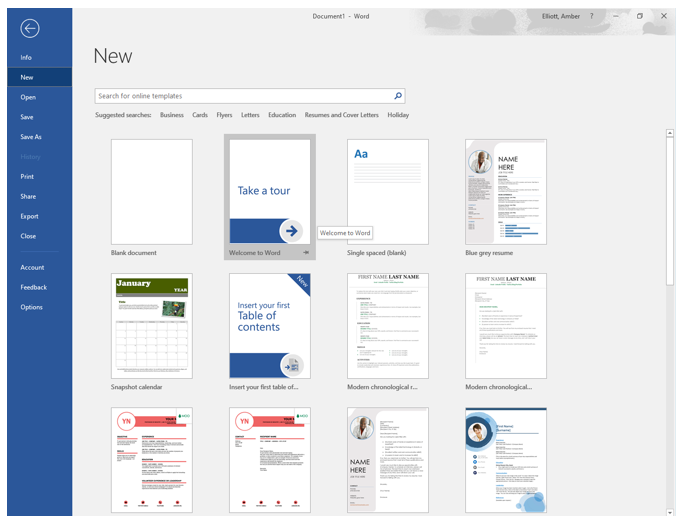
When opening Microsoft Word for the first time the Start Screen will appear. Microsoft Word will give you several options when starting a presentation. You can open an existing document, choose a document template, or start from scratch by choosing blank document.
Once your document is open you will find all the tools needed to create a professional document.
2. The MS WORD Window
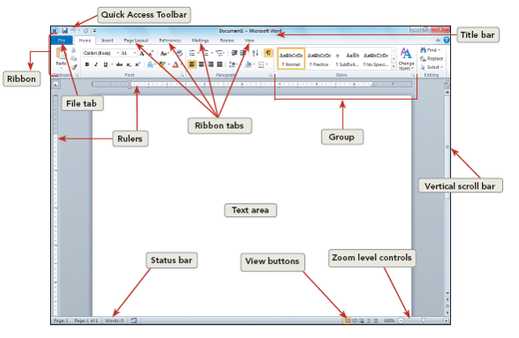
Figure 2.2 Microsoft Word Window
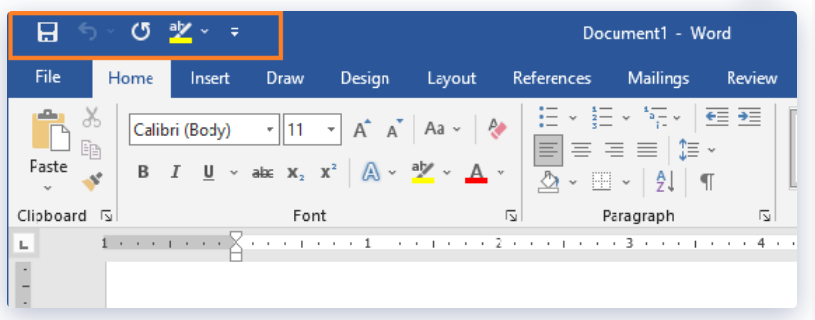
Quick Access toolbar provides access to common commands such as undo, redo, save, and start from the beginning. This access bar can be costumized to fit your personnel needs by clicking on the customizing Quick Access bar button at the end of the toolbar.
Title Bar - This displays the name of the current open document, when opening a new file is always displays Document1 (or 2, 3, 4 etc.) until you save and name the file.
Ruler - There are horizontal and vertical rulers that display when you are in Print Layout View. The horizontal ruler shows the placement of margins, indents, and tabs. You can also show and hide these rulers by using the View Ruler button.
Text Area - This is where your text, images, etc will be displayed.
Scroll Bars - Use these with your mouse to move up, down, right or left within the document.
Status Bar - This displays the page number, page count, document view buttons, and zoom control. It will also display current mode of operation and can be customized to include other functions.
View Buttons - This is used to switch between views such as Print Layout, Full Screen Reading, Web Layout, Outline, and Draft View.
Screen Tips - Appear when you point to a command on the Ribbon, it includes the name of the command along with a description of what that command does.
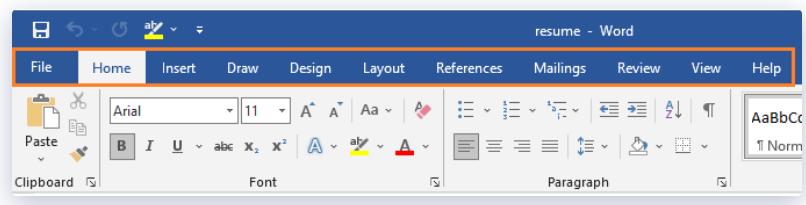
The Ribbon is a user interface element which was introduced by Microsoft. It is located below the Quick Access Toolbar and the Title Bar. It comprises nine tabs; Home, Insert, Design tab, Page layout, References, Mailing, Review and View. Each tab has specific groups of related commands.
3. Parts of Ribbon in Microsoft Word
1. MS Word Quick Access Toolbar
The Quick Access Toolbar, is a set of the most-used commands that are always available, no matter what MS Word Ribbon command set is being used. By default, the QAT comes with three commands: Quick Save, Undo, and Redo. But many people change the QAT to add print, copy, and paste to the default commands.
2. MS Word Ribbon Tabs
The Tabs of MS word 2019 are like the old way of making menus. But instead of a list of menus, when you switch Tabs, you’ll see a different set of commands on the Ribbon. Along the top of Word 2019, there are 11 tabs: File, Home, Insert, Draw, Layout, References, Mailings, Review, View and Help.
3. Ribbon Groups
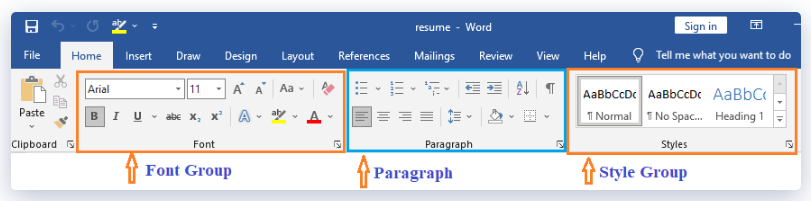
Each tab on the Ribbon has many command groups as we’ve notice. When selecting the Home tab in Word, for instance, the following groups are displayed: Clipboard, Font, Paragraph, Styles, and Editing.
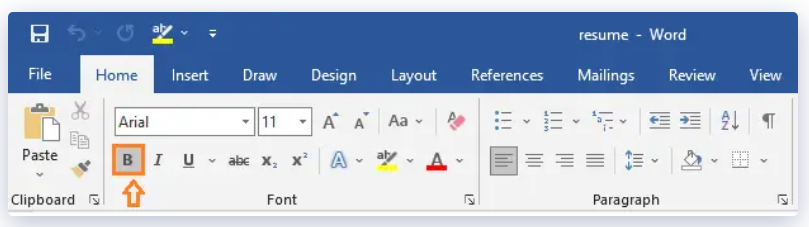
Each group contains the most frequently used command buttons for that category; for instance, the Font group contains the Bold, Italic, and Underline command buttons.
4. Command Buttons
The command buttons are the components that are responsible for doing all of the work. If you want certain words to stand out more, for instance, you would use the Bold button to make that change.
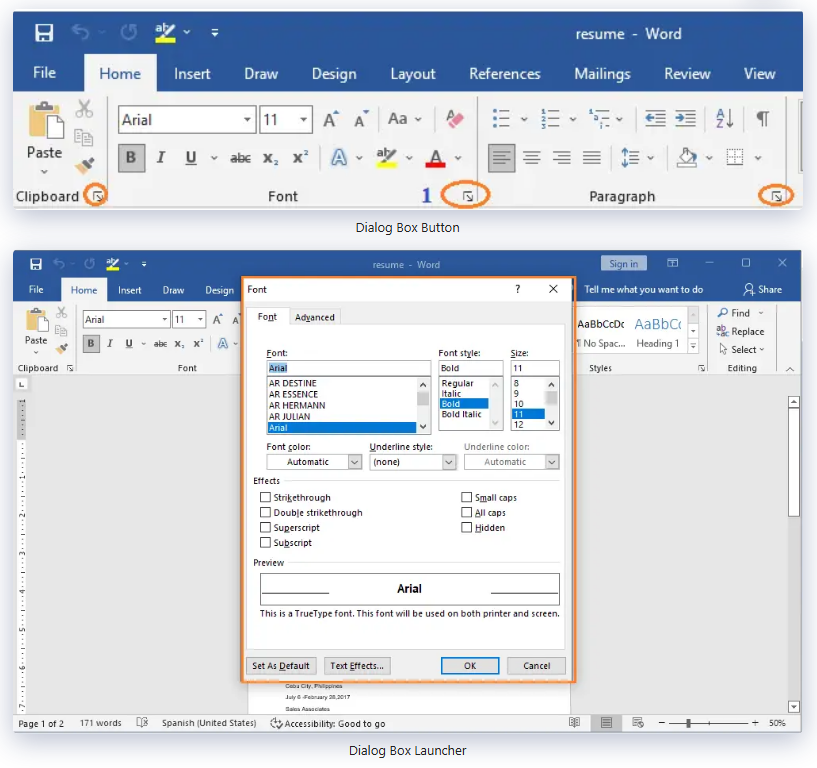
5. Dialog Launcher of MS Word Ribbon
Dialog Launcher is a set of command buttons that cannot fit on the Ribbon due to lack of space. If there is an additional command set, an arrow in the bottom right corner of the group will be visible, which will allow you to see the complete command set.