Unit 3: Working with Text
| Site: | Newgate University Minna - Elearning Platform |
| Course: | Computer Applications and Systems |
| Book: | Unit 3: Working with Text |
| Printed by: | Guest user |
| Date: | Thursday, 1 October 2026, 4:12 PM |
1. Adding and Editing Text
When a blank document is opened, the insertion point (blinking cursor) appears. As you type, the insertion point moves to the right and the typed characters appear to the left. As the end of a line of text is reached, the text automatically wraps to the next line; this feature is called word wrap. When Enter is pressed on the keyboard, the cursor jumps to the next line.
To insert new text into a Word document, position the mouse pointer (it should be an I-beam) at the point where the text is to be inserted and click. Once the cursor is in place, begin typing. To delete text, select the text by clicking the mouse and dragging until it is highlighted and press the Delete or Backspace key on the keyboard.
· The Delete key can also be used to delete the text one character at a time. Each time it is
· pressed, the character or space directly to the right of the blinking cursor is deleted.
· The Backspace key works much in the same way, only it deletes the character directly to the left
· of the blinking cursor.
2. Selecting Text
Selecting is also called highlighting because the program highlights the text to show what’s being chosen. Selecting text allows changes to be made to it. Once selected, text can be changed in a variety of ways. You must Select It to Effect It.To select text using the arrow keys on the keyboard:
· Position the blinking cursor next to the text to be selected
· Hold down the Shift key
· Use the arrow keys to select the text before or after the cursor
To select with the mouse:
· Position the I-beam at the beginning of the text
· 2. Click and hold the mouse button down
· 3. Drag the mouse over the text until the text is highlighted
· 4. Release the mouse button
To select portions of text that are noncontiguous (not right next to each other):
· Select the first portion of text using one of the methods above
· Hold down the Ctrl key on the keyboard while selecting the next portion of text
To select one full line of text:
· Move the cursor into the left margin until the I-beam changes to an arrow
· Position the arrow in front of the line to be selected and click once
To select an entire paragraph:
· Move the cursor into the left margin until the I-beam changes to an arrow
· Position the arrow at the top line of the paragraph to be selected
· Double-click in the left margin
To select all of the text in the document, choose one of the options below:
· 
 Go to the Home tab
  Editing group Select Select All
· Move the cursor into the left margin; when the I-beam changes to an arrow, triple-click the mouse
· Use the keyboard shortcut Ctrl + A
Remember in Word you have to select it to effect it.
3. Moving and Copying Text
There are several ways to move and copy text in a Word document.
Drag and Drop
· Select the text to be moved
· Click on the selected text and hold down the mouse button
· Drag the text to the new location
· Release the mouse button
Word indicates that it is moving text with a small rectangle that represents the selected text below the arrow.
Cut, Copy, and Paste
To move or copy a large amount of text or to copy text from one document or one program to another, cut and paste (or copy and paste) is the best method.
Cutting and pasting or copying and pasting always consists of two separate steps.
· Cutting and pasting (i.e. moving text) removes the text from its original location and puts it in a new location specified by you
· Copying and pasting leaves the original text in its location and puts an exact copy of it in a new location specified by you
Most people refer to either of these tasks as “copying and pasting.”
Cutting, copying, and pasting can be performed using Ribbon commands or keystroke combinations.
Using the Ribbon commands in the Clipboard group on the Home tab to cut and paste text:
· Select the text to be moved
· Click on the Cut icon (scissors)
· The selected text disappears from its former position and is stored in
· a virtual location called the clipboard; once the text is stored to the
· clipboard, it can be placed in a new location in the same document
· or in a different document by using the paste command
· To paste the text that has been cut, click the Paste command
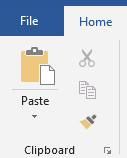
The text can be copied instead of cut by using the Copy command during Step 2, which looks like two pieces of paper stacked on top of one another. Keystroke combinations on the keyboard can also be used to cut, copy, and paste:
· Ctrl + X = cut
· Ctrl + C = copy
· Ctrl + V = paste
Undo Button
On the Quick Access toolbar, which appears just above the ribbon tabs, is an icon with a blue arrow pointing to the left is the Undo button. If you do something in your document that you want to undo, go to the Quick Access toolbar and click on the Undo button; the program reverses the most recent command. Keep clicking the Undo button, and Word reverses your actions step by step. The keyboard shortcut for undo is Ctrl +