COMPONENTS OF A WINDOWS DESKTOP
| Site: | Newgate University Minna - Elearning Platform |
| Course: | Introduction to Computer Science |
| Book: | COMPONENTS OF A WINDOWS DESKTOP |
| Printed by: | Guest user |
| Date: | Sunday, 12 July 2026, 12:22 AM |
1. Basic components of the windows desktop
COMPONENTS OF WINDOW
Window is the rectangular portion or a frame which contains any file, folder or programme on it. A typical window may contains following elements,
The basic components of the windows desktop are:
1. ICON
2. TASKS BAR
3. BACKGROUND
ICON
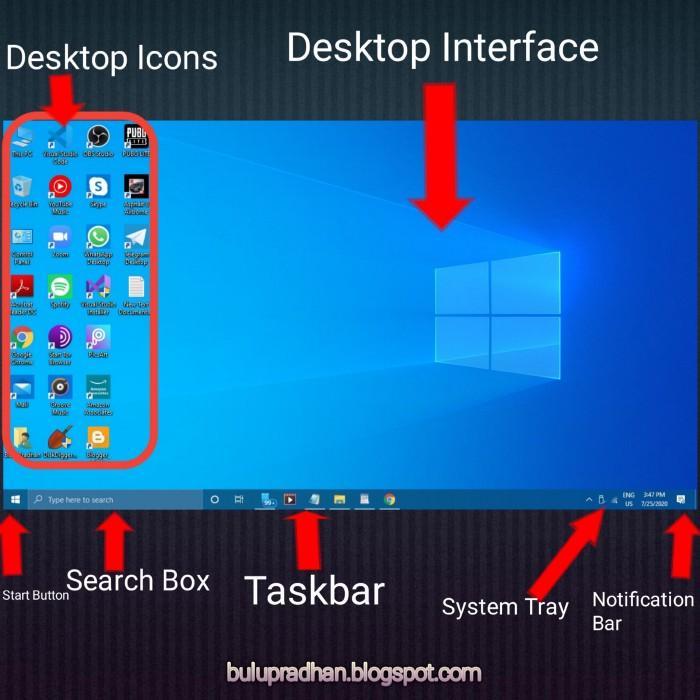
An Icon in windows is a small picture or object that represents a file, program, web page or command prompt. Mostly the Icon are related to the function of the item that it represents . The pictorial representation of any file, folder and programme is called an ICON, For example This PC, My Networks, Recycle Bin etc.
TASK BAR
A taskbar is a virtual device on the desktop that typically shows the user which applications (tasks) are currently active and running it is usually found at the bottom of the desktop, but it depends user‘s modification.
BACKGROUND
A background is also called DESKTOP. It
is the area where Icons and windows are displayed.
2. Practical: Demonstration of the basic parts of a computer
Practical: Demonstration of the basic parts of a computer
The Computer Mother Board
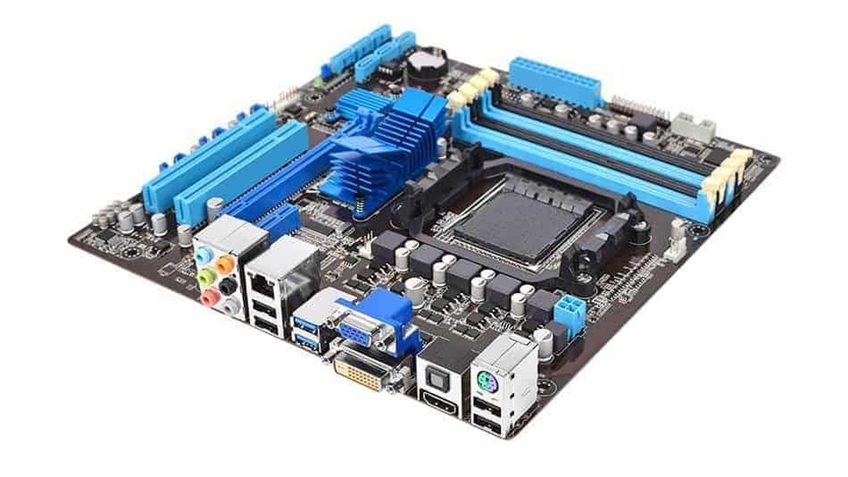
The main printed circuit board in a computer is known as the motherboard. Other names for this central computer unit are system board, mainboard, or printed wired board (PWB). Numerous major components crucial for the functioning of the computer are attached to the motherboard. These include the processor, memory, and expansion slots. The motherboard connects directly or indirectly to every part of the PC.
 Central Processing Unit (CPU)
2.1. The Computer's Microprocessor
Also known as the microprocessor or the processor, the CPU is the computer's brain. It is responsible for fetching, decoding, and executing program instructions. It also performs mathematical and logical calculations.
The processor chip is identified by the processor type and the manufacturer. This information is usually inscribed on the chip itself. For example, Intel 386, Advanced Micro Devices (AMD) 386, Cyrix 486, Pentium MMX, Intel Core 2Duo, or Core i7.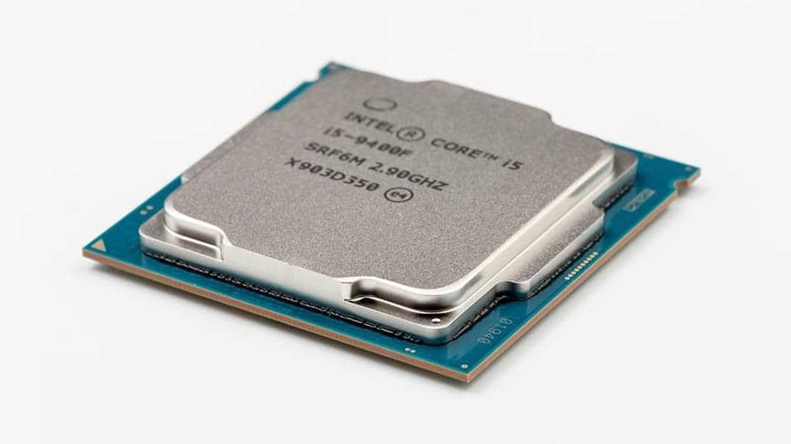
If the processor chip is not on the motherboard, you can identify the processor socket as socket 1 to Socket 8 and LGA 775, among others. This can help you identify the processor that fits in the
socket. For example, rPGA 988A/Socket G1 will fit any of the following processors; Random Access Memory (RAM)2.2. Random Access Memory
Random Access Memory, or RAM, usually refers to computer chips that temporarily store dynamic data to enhance computer performance while you are working.
In other words, it is the working place of your computer, where active programs and data are loaded so that any time the processor requires them, it doesn't have to fetch them from the hard disk.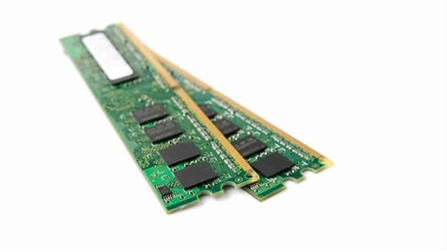
Complementary Metal Oxide Semiconductor Random Access Memory (CMOS RAM)
The CMOS Battery
Motherboards also include a small separate block of memory made from CMOS RAM chips which are kept alive by a battery (known as a CMOS battery) even when the PC‘s power is off. T CMOS devices require very little power to operate.
The CMOS RAM is used to store basic information about the PC‘s configuration, for instance:
• Floppy disk and hard disk drive types
• Information about CPURAM size
• Date and time
• Serial and parallel port information
• Plug and Play information
• Power Saving settings
Other Important data kept in CMOS memory is the time and date, which are updated by a Real-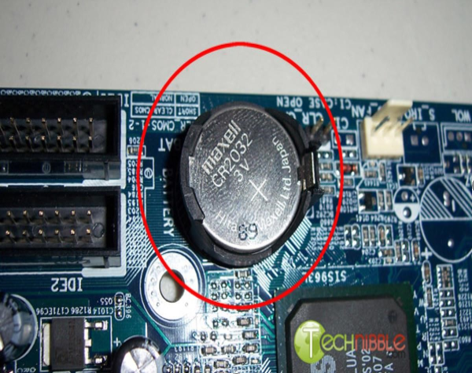
2.3. PCI slots
PCI slots
The Expansion Buses
An expansion bus is an input/output pathway from the CPU to peripheral devices. It is made up of a series of slots on the motherboard. Expansion boards (cards) plug into the bus.
PCI is the most common expansion bus in a PC and other hardware platforms. Buses carry signals such as data, memory addresses, power, and control signals from component to component. Other types of buses include ISA and EISA.
Expansion buses enhance the PC's capabilities by allowing users to add missing features to their computers by slotting adapter cards into expansion slots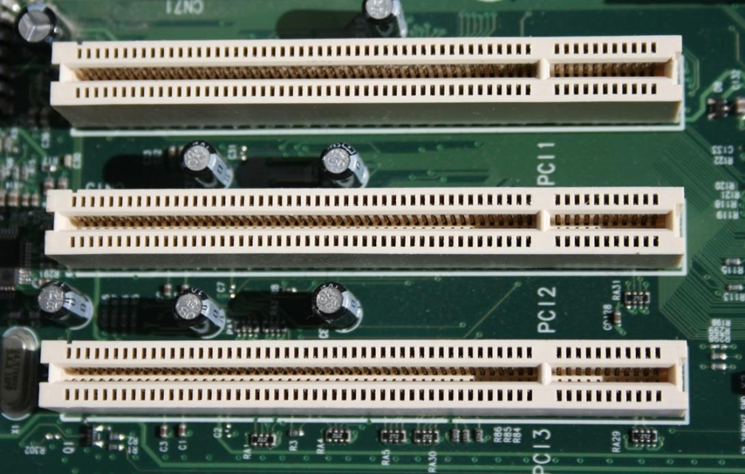
2.4. computer bus
This introduction to computer bus article covers all of them, including the new types. The Computer Chipsets
A chipset is a group of small circuits that coordinate the flow of data to and from a PC's key components. These key components include the CPU itself, the main memory, the secondary cache, and any devices located on the buses.
A chipset also controls data flow to and from hard disks and other devices connected to the IDE channels.
A computer has got two main chipsets:
• The NorthBridge (also called the memory controller) is in charge of controlling transfers between the processor and the RAM, which is why it is located physically near the processor. It is sometimes called the GMCH for Graphic and Memory Controller Hub.
• The SouthBridge (also called the input/output controller or expansion controller) handles communications between slower peripheral devices. It is also called the ICH (I/O Controller Hub). The term "bridge" is generally used to designate a component that connects two buses.
Chipset manufacturers include SIS, VIA, ALI, and OPTI.
The CPU Clock2.5. CPU clock
The CPU clock synchronizes the operation of all parts of the PC and provides the basic timing signal for the CPU. Using a quartz crystal, the CPU clock breathes life into the microprocessor by feeding it a constant flow of pulses.
For example, a 200 MHz CPU receives 200 million pulses per second from the clock. A 2 GHz CPU gets two billion pulses per second. Similarly, in any communications device, a clock may be used to synchronize the data pulses between the sender and receiver.
A "real-time clock," also called the "system clock," keeps track of the time of day and makes this data available to the software. A "time-sharing clock" interrupts the CPU at regular intervals and allows the operating system to divide its time between active users and/or applications.
The Switches and Jumpers
• DIP (Dual In-line Package) switches are small electronic switches found on the circuit board that can be turned on or off just like a normal switch. They are very small and so are usually flipped with a pointed object, such as the tip of a screwdriver, a bent paper clip, or a pen top. Take care when cleaning near DIP switches, as some solvents may destroy them. Dip switches are obsolete, and you will not find them in modern systems.
• Jumper pins are small protruding pins on the motherboard. A jumper cap or bridge is used to connect or short a pair of jumper pins. When the bridge is connected to any two pins via a shorting link, it completes the circuit, and a certain configuration has been achieved.
• Jumper caps are metal bridges that close an electrical circuit. Typically, a jumper consists of a plastic plug that fits over a pair of protruding pins. Jumpers are sometimes used to configure expansion boards. By placing a jumper plug over a different set of pins, you can change a board's parameters.
NOTE: You can check the jumper pins and jumper cap at the back of an IDE hard disk and a CD/DVD ROM/Writer. More Resources
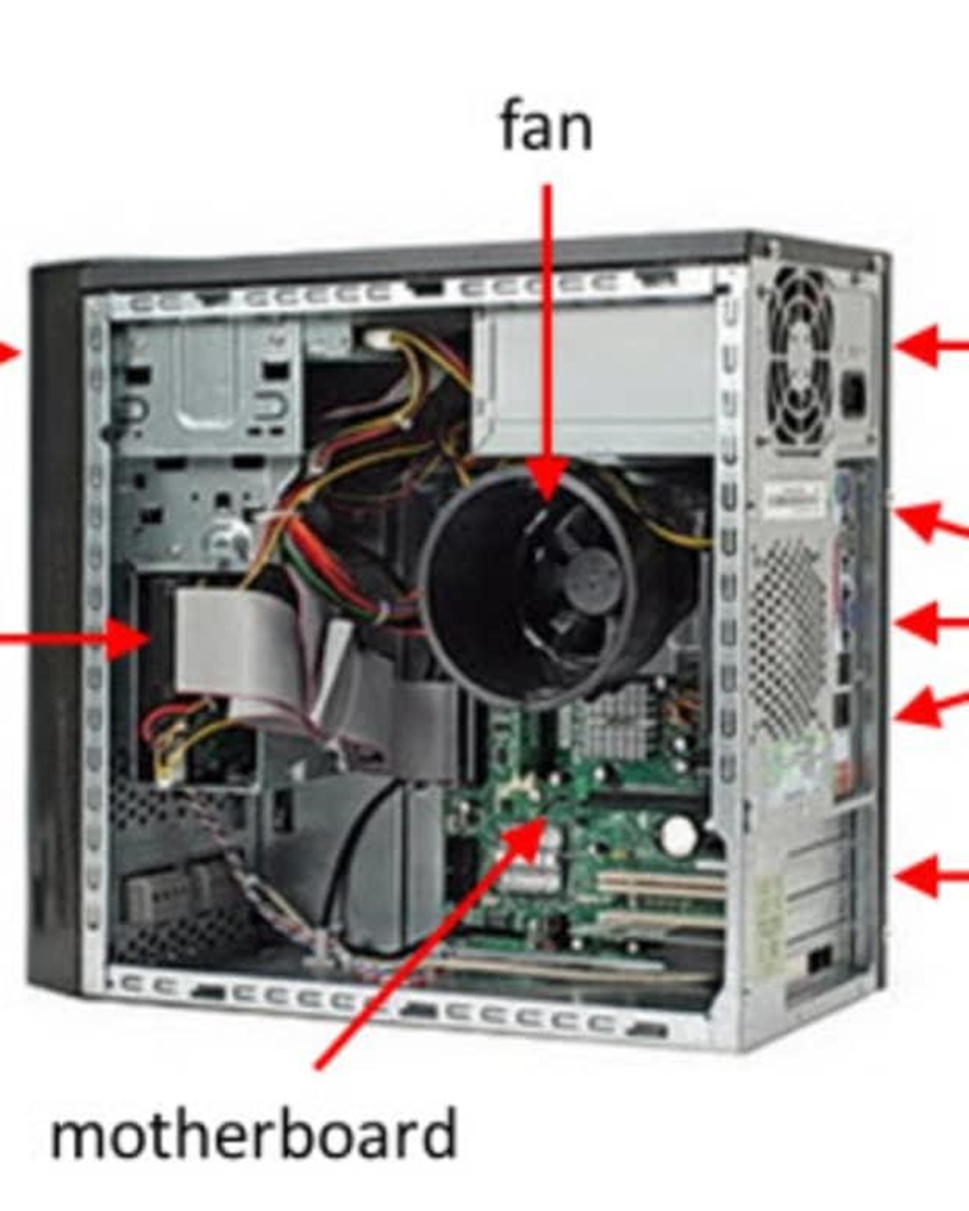
If you are on the lookout for more resources about computers, you can buy this book CompTIA A+ Certification All-in-One Exam Guide. This is a good book for those who want to know much more about computer hardware. I have used the book on numerous occasions, and Mike Meyers never disappoints.2.6. CPU INTERNAL DISPLAY
3. HUMAN WARE
Humanware is the human resource that works with a computer.
Software or hardware whose design was developed according to a specific need of the end user is also known as human ware . This means that these resources are designed taking into account the limitations and requirements of those who are going to use them.
The creation of humanware, in this framework, usually includes a testing stage to ensure that the design is appropriate. This is how we try to optimize the experience that the user will have when using it.
Educational software intended for children of a specific age is an example of humanware. This type of computer program must consider the cognitive capacity and maturity of the children. Another example of humanware is the technology that seeks to give greater autonomy to individuals with different types of disabilities: in this case, the physical obstacles posed by users must be considered.
In a broad sense, it can be said that humanware is linked to the acquisition, implementation and use of computer systems, focusing on the human question of these processes. Humanware has to do with the successful incorporation of technologies to satisfy people's needs.
Today, the human aspect is one of the most important when creating and developing devices, applications and services, much more than in the early 1990s. In part thanks to the massification of social networks and other tools virtual, the public went from having an almost passive role, consisting of accepting the offers imposed by the market, to one that allows them to make themselves heard and demand the respect they deserve at every step.
1. User Interface Design: Humanware involves the design and creation of user interfaces that are intuitive, user-friendly, and efficient. This includes considerations for graphics, navigation, and overall user experience.
2. User Experience (UX): Humanware emphasizes creating positive user experiences. This involves understanding how users interact with technology, identifying pain points, and improving the overall usability and satisfaction of computer systems.
3. Training and Education: Humanware includes the education and training programs that help users understand and use computer systems effectively. This is essential for maximizing the potential of technology and minimizing user errors.
4. Human-Computer Interaction (HCI): HCI is a field of study that focuses on the design and use of computer technology, emphasizing the interfaces between people and computers. Humanware considerations play a crucial role in HCI, ensuring that technology is designed with human needs and capabilities in mind.
5. Accessibility: Humanware involves making computer systems accessible to individuals with different abilities and needs. This includes designing interfaces that can be used by people with disabilities and providing alternative means of interaction.
6. Ethical Considerations: Humanware extends to ethical considerations in technology use. This involves addressing issues such as privacy, security, and the responsible use of technology to ensure that computing systems align with societal values and standards.
Humanware in the context of computers acknowledges the critical role of human users in the design, implementation, and use of technology. It places importance on creating technology that is user-centric, accessible, and aligned with ethical principles