WORD PROCESSING
| Site: | Newgate University Minna - Elearning Platform |
| Course: | Introduction to Computer Science |
| Book: | WORD PROCESSING |
| Printed by: | Guest user |
| Date: | Sunday, 12 July 2026, 12:13 AM |
1. WORD PROCESSING
WORD PROCESSING: can be define as the process of using software to create, edit, view, store, retrieve, format and print textual documents such as letter head papers, memo and other documents.
A WORD PROCESSOR is software that is used for word processing. Examples of word processors (word processing packages)
(1) Microsoft word (2) WordStar (3) Word perfect (4) word pro (5) Corel word perfect
(6) Lotus note (7) perfect writer (8) MultiMate advantage (9) professional writer 10. Google Doc
ADVANTAGES OF WORD PROCESSOR
I. Word processing software produce error-free document
II. It avoids retyping of documents
III. It permits in printing multiple copies of the document once the document is created
IV. It permits in checking spelling and grammar automatically
V. It helps in choosing the most appropriate word in a context
VI. Facility to generate beautifully formatted documents
VII. It supports mail merging
VIII. It has additional facilities such as inserting of objects from other files and linking of documents through hypertext
THE USES OF WORD PROCESSOR
Word processor can be used to do the following:
✔ To create books
✔ Articles
✔ Newsletter
✔ Resumes
✔ Notes
✔ Assignments
✔ Birthday cards
✔ Invitation cards
✔ Lectures scripts
✔ Letterhead samples
✔ Bills
✔ Cash memo
✔ Joining letters
✔ Receipt
✔ To create calendar
✔ Report
✔ Brochure
✔ Application form
✔ eBook
✔ Use as translator
2. MICROSOFT OFFICE
MICROSOFT WORD (MS WORD)
Microsoft word is a word processor designed by Microsoft Corporation USA. It is the most common word processor today because of its special features. It comes in a software suite called Microsoft office. Some versions of Microsoft office are: MS office 2000, MS office 2003, MS office 2007, MS 2010.MS 2013, MS 2016, MS 2019,2021
(Microsoft word) comes in a software suite called Microsoft office which comprises of
1. Microsoft word
2. Power point
3. Excel
4. Outlook
5. Publisher
6. Groove
7. Microsoft access etc
2.1. HOW TO LAUNCH MICROSOFT WORD
H0W TO LAUNCH MICROSOFT WORD
There are three methods in launching Microsoft word
Method 1
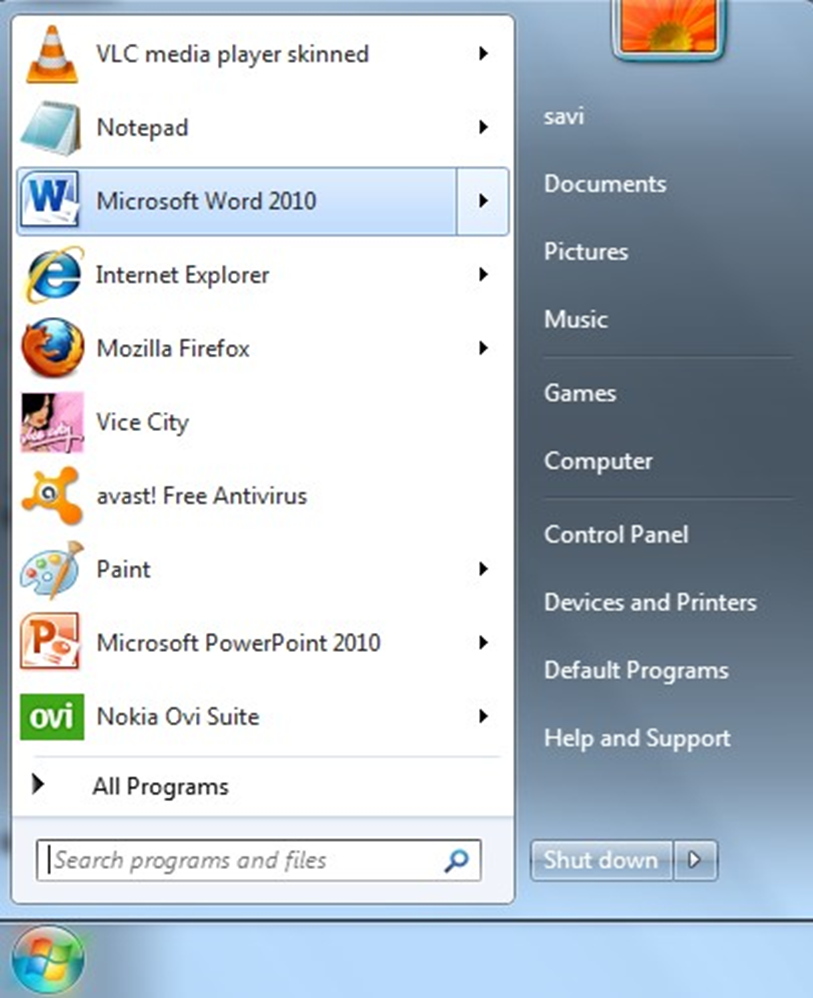
1. Take the mouse pointer to start button on the task bar. Click the left mouse button.
2. Move the pointer to programs. You will notice another menu coming up to the right.
3. In that menu identify where Microsoft word is placed. Move the cursor horizontally to come out of the programs.
4. Move into the rectangular area meant for the MS word. Click the left mouse button there. The computer will start MS-word.
2.2. METHOD 2
Method 2
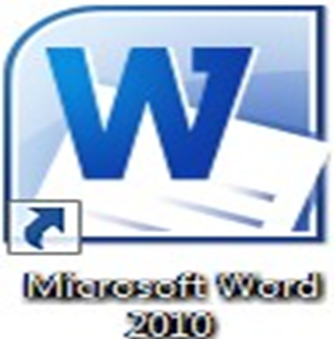
Double click on the Microsoft word icon on the desktop
2.3. MTHOD 3
Method 3
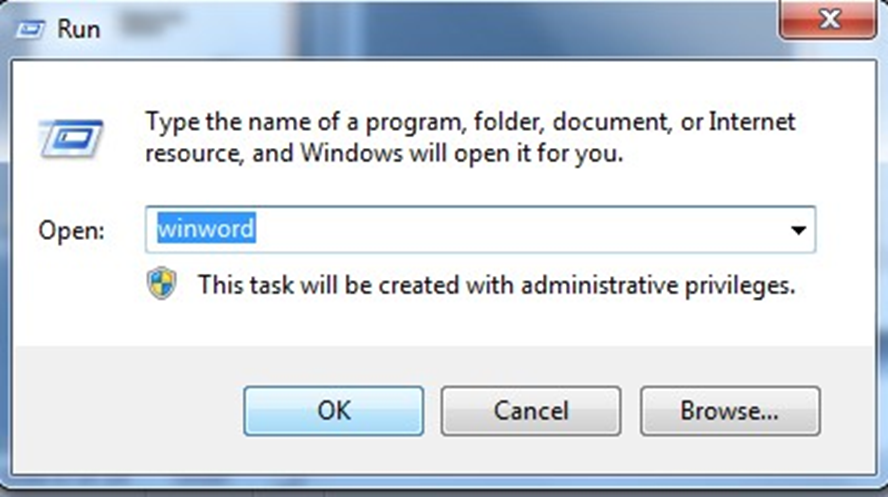
This method involve the use of keyboard by pressing windows logo key and R ( alphabet R ) on your keyboard. below Dialog box will pop up.
Besides these two methods other methods for opening word are:
Using Run Command.
Using DOS: Specify the absolute path to open WINWORD.EXE OR WINWORD title. After writing the absolute path the MS-Word will open up.
3. FEATURES OF MICROSOFT WORD
FEATURES OF MICROSOFT WORD
Some of the features are Opening a Document, Editing a Document, Formatting a Document, Inserting a Document, Saving a Document, Retrieving an existing Document, The office button, Menu Bar, Title Bar, Minimize button ,Maximize button, Closing a Document etc.
FEATURES OF MICROSOFT OFFICE
⮚ The office Button- It’s located in the upper left corner of MS word. Whenever you click on the button, you will see the basic command available on the file menu, open, save and print etc
⮚ Menu Bar- This contains the Home page (edit) insert, page layout, reference, mailing, review, view.

⮚ Title Bar – It gives information about the name of the package as well as the name of the document you are working on.
⮚ Minimize Button- It’s used to hide current document/ work.
⮚ Maximize Button- The button give command to a document to restore previously minimize document or to enlarge window below.
⮚ Close Button- Its use to close document.
⮚ The Horizontal Ruler- This enable a user scale a document horizontally
⮚ The vertical Ruler- This enable a user document vertically
⮚ Status Bar- contains information about a document, examples are : The page currently being viewed by the user, number of words in a document
⮚ Creating a New Document/ opening of New Document
Anytime you load Microsoft word, a new document is opened by default. To open a new document
● Click on the office button
● Select new from displayed options
● Select blank document from the dialog box
● Click on create button
NOTE- A blinking cursor will appear in the text area called the insertion point, then follow the cursor by first deleting the initial text before you enter the text or the name you want to give the new document.
⮚ Opening of Existing Document
● Click on the office button
● Select open from the displayed options
● Select the drive or directory where the document is located
● Select the document from the dialog box
● Click open button
⮚ Editing a Document
The editing features in MS word are
1. Copy, cut and paste
2. Format painter
3. Thesaurus
4. Finding and replace
5. Go to
6. Spelling & Grammar
7. Word count
4. FEATURES
CUT- Cut feature is use to remove information from document
PASTE- Is a feature use to place the information been cut or copy from same or different document.
COPY- Copying a document or portion of a document means duplicating the document.
N.B: The original document will still remain while the duplicate of it will be found in a new location.
METHODS OF COPYING A DOCUMENT
⮚ Shortcut method
⮚ Keyboard method
⮚ Drag & drop method
⮚ Ribbon bar method
⮚ Right mouse method
SHORTCUT METHOD PROCEDURE)
✔ Highlight the portion of a document to be copied
✔ Right click on the highlighted text
✔ Select copy
✔ Position the insertion point in a new location
✔ Right click in an empty space
✔ Select paste
KEYBOARD METHOD (PROCEDURE)
✔ Highlight the text to be copied in the Document
✔ Press the ctrl + C to copy
✔ Position the cursor on the insertion point
✔ Press the key ctrl + V to paste
DRAG & DROP METHOD
✔ Highlight the text to be copied
✔ Hold down the ctrl key as you drag the highlights to a new location
✔ Release the mouse button
RIBBON BAR METHOD
✔ Highlight the portion of the document to be copied
✔ Click on the Home ribbon
✔ Click copy on the clipboard
✔ Position the insertion point in a new location
✔ Click on the paste from the Home Ribbon (clipboard)
NOTE- To cut a document means to move the document from its original location to a different location.
All the steps involved when copying a document are equally applicable with the cut method, but the only difference is that, instead of selecting copy, you just need to select cut before pasting the document.
FIND AND REPLACE
Whenever a mistakes is made all over a document. For example mistakenly typed fred instead of fried, the find and replace feature help locate the errors and quickly replace them with the expected text. To apply the find and replace feature in a document:
● Click on the Home ribbon
● Click on the find icon on the drop down arrow and select find.
● Click on the replace Tab
● Type the error text in the find what text box and the corrected text in the Replace with text box
● Click on replace all if you want it to do an entire document correction or Replace if you want it one after the other.
● Click cancel button to abort operations.
GOTO
This is a quick navigation command. It is used to move to a specified location within a document without having to scroll through almost the entire pages.
SPELLING AND GRAMMAR
They check whether a document is error free both spelling and grammar.
5. FORMATTING A DOCUMENT
FORMATTING A DOCUMENT
Formatting a document is processing of making a document presentable, which entails the following
❖ Font : A font format contains the following
1. Font Face- This is the text outlook of a document, which can be Arial, Times New Roman, freestyle script, Tahoma etc.
2. Font size- This is the text sizes of the document which ranges from 8-72
3. Font Style- This is the effects on the text, examples are bold, italic, regular, bold italic, underline.
4. Font colour- This is the colour effect on the text such as rd, green, blue etc.
5. Font effect- This display other effect on text such as strike through, subscript, superscript, change case etc.
6. Character spacing- This display different characteristic of spacing that can be applied on the text. Examples, expanded or condensed, kerning etc.
❖ Paragraph- This feature determines the distances between texts and lines
1. Indent and spacing- This feature creates a text with spacing before or after. examples are alignment indentation and spacing
❖ Bullets and Numbering- This format displays how a list should appear.
✔ Bullets- This is a way of using a picture in form of icons to illustrate list.
✔ Numbering- This is the way of using number to list items.
The numbering of items can either be Roman or Arabic Numerals
INSERTING FEATURES TO A DOCUMENT
These include MS word embedded features and external features that can be extracted into a document. They include:
I. Tables
II. Pictures or Clip Art
III. Shapes
IV. Header & Footer
V. Page Number
VI. Text Box
VII. Word Art
VIII. Drop Cap
IX. Symbols
6. METHODS OF SAVING A DOCUMENT
SAVING A DOCUMENT
Best practice demands that we save our document before we begin creating texts; this is because of power failure or unforeseen circumstances.
You can save your documents in two different ways, which includes
● SAVE (Require no password)
● SAVE AS ( This type of saving require you to save your documents using passwords in some windows like Windows XP or you wnat to rename your document or you want to change the file extension (PDF etc)).
PRINT PREVIEW
It is ideal to preview all documents before any print operations this will determines if the document is intact as it should be.
7. Major Microsoft word Short cut keys
SHORT CUT KEYS
|
Keys |
Meaning |
|
Ctrl +A |
To Highlight all |
|
Ctrl + B |
To Bold |
|
Ctrl + C |
To Copy |
|
Ctrl + D |
For Font |
|
Ctrl + E |
To align to the centre |
|
Ctrl + F |
To Find |
|
Ctrl + G |
GOTO |
|
Ctrl + H |
To replace |
|
Ctrl + I |
Italic |
|
Ctrl + J |
Justify |
|
Ctrl + k |
To insert hyperlink |
|
Ctrl + L |
Alignment to the left |
|
Ctrl +M |
Indent |
|
Ctrl + N |
Open a New Document |
|
Ctrl + O |
Brings up a browse dialog and allows you to select a file to open |
|
Ctrl + P |
Prints a document |
|
Ctrl + Q |
To change line spacing |
|
Ctrl + R |
Align text Right |
|
Ctrl + S |
To Save |
|
Ctrl + U |
To Underline |
|
Ctrl + V |
To paste copied document |
|
Ctrl + W |
To close currently open document |
|
Ctrl + X |
To cuts (removes) a selected documents |
|
Ctrl + Y |
To redo |
|
Ctrl + Z |
To Undo last command |