Unit 3: slide Presentation
| Site: | Newgate University Minna - Elearning Platform |
| Course: | Computer Applications and Systems |
| Book: | Unit 3: slide Presentation |
| Printed by: | Guest user |
| Date: | Thursday, 1 October 2026, 2:46 PM |
1. Ribbon Tabs
To start PowerPoint, click on the Start button and scroll down or search for PowerPoint. Click on the result to open it. Then further select a Blank Presentation. A new blank PowerPoint presentation will open.
On the Ribbon above, you can see various tabs such as:
1. File
2. Home
3. Insert
4. Design
5. Transitions
6. Animations
7. Slide Show
8. Review
9. View
10. Help
Home
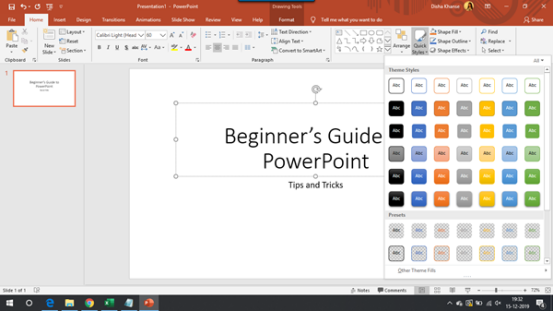
In the Home tab, you will find various groups such as clipboard, slides, font, paragraph, drawing, and editing. You can use the cut, copy, paste, and format painter functions from the Clipboard group.

In the Slides group, you can add a new slide to the presentation with the layout of your choice. You can reset the position, size, and formatting of the slide placeholders to their default settings.
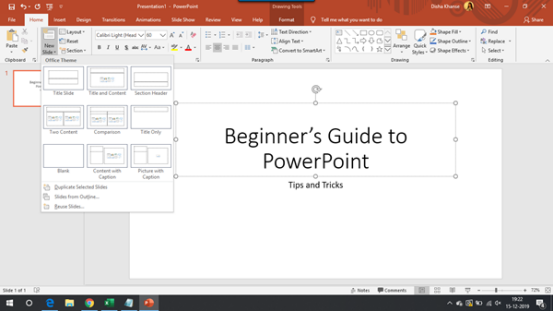
You can choose a new font and change the font size for the text. The Font group offers more options to make the text bold, italicize the text, underline the text, change the case, adjust the spacing between the characters, etc. You can also change the font color and highlight the text in bright colors.
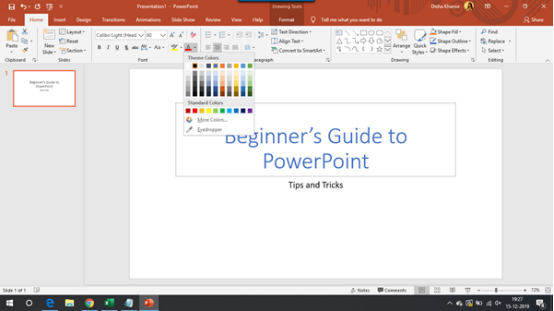
In the Paragraph group, you can create a bulleted list, numbered list, increase or decrease indent, and adjust the space between lines of text. You can align the text to left, right, center, or evenly distribute your text between the margins. You can add or remove columns and also choose the width and spacing of your columns.
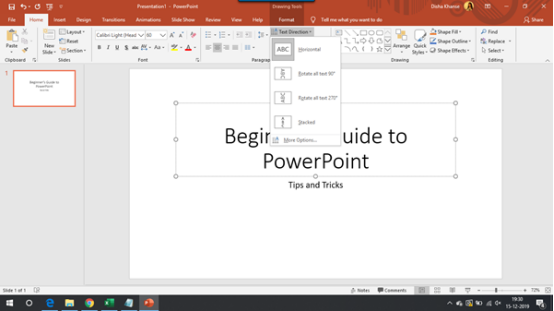
Under Text Direction, you will find options to change the orientation of the text to vertical, stacked, or rotate it to the desired direction.
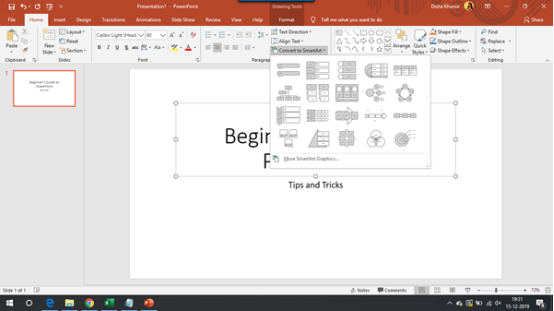
The Convert to SmartArt Graphic helps you organize and present the information in forms of a process, cycle, relationship, hierarchy, etc.
From the Drawing group, you can insert various shapes such as squares, circles, arrows, flowcharts, action buttons, and many more. To the shapes, you can add different visual styles to change its appearance.
2. Ribbon Tabs II
Insert
The Insert tab is divided into various groups related to slides, tables, images, illustrations, add-ins, links, comments, text, symbols, and media.

You can add a new slide to the presentation. You can also add a table of numerous rows and columns as per your preference to display the information nicely.
Design
The Design tab consists of Themes, Variants, and Customize groups.

PowerPoint has a large number of themes that you can choose from to give your presentation the right look and the right feel. Each theme has its own unique set of colors, fonts, and effects which creates a unique personality for the presentation.
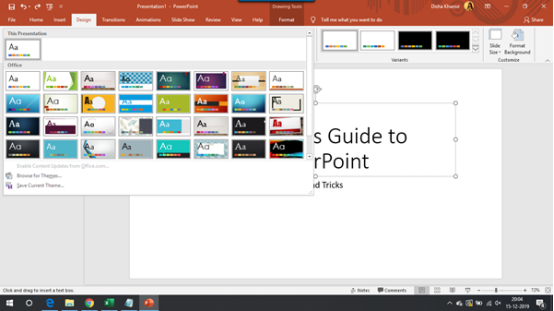
In the Variants group, you will find options to customize the look of the current design.
Transitions
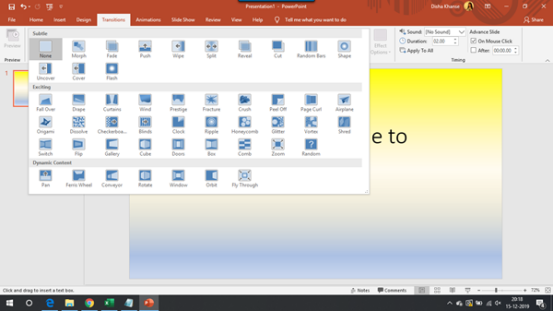
In the Transitions tab, you will find commands related to previewing, transitions to the slide, and timing.

There are tons of options for transitions such as fade, uncover, flash and many more. You can set sound and duration as well for each slide.
Animations
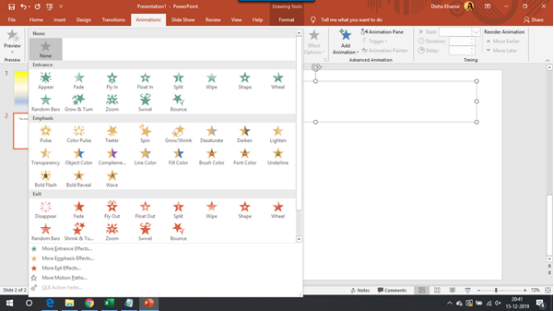
In the Animations tab, there are groups related to previewing, animation, advanced animation, and timing.

You can add animations to selected objects and set duration for the same.
Slide Show
Here, you will find options to start the slide show from the beginning or from the current slide. You will find advance options for the slide show as well. You can hide a slide so that it does not appear while the presentation is playing. You will also find an option to record the slide show.

Review
In the Review tab, proofing will help you check for any grammatical errors or typos. Insights will help you learn more about the text you select by seeing definitions, images, and other results from various online sources.

View
The View tab consists of various groups related to presentation views, master views, show, zoom, color/grayscale, window, and macros.

Depending on what view you select, you will be able to view your presentation in that form. The various forms of Presentation views include normal, outline view, slide sorter, notes page, and reading view.
Help
You can get help from a Microsoft support agent and give feedback.
