
Unit 2: MS word menu tabs
1. Home Tab
The Home tab commands are put together in groups called Clipboard, Font, Paragraph, and Styles. There is a vertical line between these parts that you can see. Under some of these areas, there are more options that can be chosen from a drop-down menu.

2. Insert Tab
Using the Insert tab, you can add pictures, shapes, pages, symbols, and other things to a document. These choices are shown with icons and text. Most of these choices have a drop-down menu where you can find more options. Pages, Tables, Illustrations, Add-ins, Media, Links, Comments, Header and Footer, Text, and Symbols are the groups of commands that make up the Insert menu.

3. Draw Tab
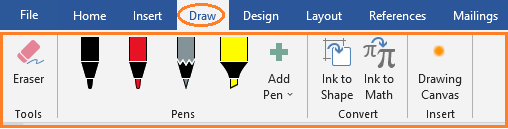
With the Draw tab ribbon, you can draw in a Word document. The draw tab is part of Office 365, and if it’s not on your ribbon, it may need to be added. On the Draw tab, you can choose what you want to do (draw or erase), what kind of pen tool you want to use, and if you want to draw with the trackpad.
4. Design Tab
The design tab lets you change your document’s format, background, color scheme, page borders, etc. If the Design tab is not in your ribbon and you want it to be, go to File > Options > Customize Ribbon and check the box next to Design.

5. Layout Tab
The Layout tab permits the user to customize the page orientation, margins, etc. The Layout options are categorized into Page Setup, Margins, and Arrangement commands.

6. References Tab
The Reference tab allows the user to enter document sources and citations, create a table of contents, and add an index, among other things. The Reference tab is organized by the following groups of commands: Table of Contents, Footnotes, Research, Citations, Captions, Index, and Table Authorities are included.

7. Mailings Tab
The Mailings Tab allows the user to merge emails, write and insert different fields, etc., and is the least frequently used tab. This commands on the Mailings tab are arranged into the following groups: Address, Start Mail Merge, Insert Fields, Preview, Merge Range, and Finish.

8. Review Tab
The Review Tab allows users to proofread, add or remove comments, track changes, enable Read Aloud, verify accessibility, etc.

9. View Tab
The View tab lets users to toggle between several document views, such as viewing multiple pages, boundaries, grids, and rulers. Focus, Immersive Reader, and Zoom are now available in the View Tab’s accessibility options. The View Tab of Word ribbon contains commands divided into the following categories: Document View, Accessibility, Show/Hide, Zoom, Window, and Macros.
The Focus option will hide everything at the top of the Word document, leaving just the blank (or written text) on the page. Focus mode was designed to remove any distractions from the document so that students can focus on their writing (or reading). When in Word and using a Mac, Control + Shift + Command + F will toggle Focus on and off.

10. Help tab
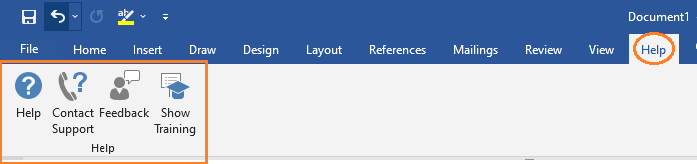
- Help – Gets help with Microsoft Word.
- Contact Support – Gets help from a Microsoft support agent.
- Feedback – Provides feedback to Microsoft.
- Show Training – Shows online training and learning content.
- What’s New – Showcases the latest upgrades from Microsoft.