
Unit 3: Formulas and Functions
2. Excel Functions
Instead of manually typing a formula into the formula bar, you can use the Formula Ribbon to insert common functions such as Sum, Date, Average, Count, Max, etc. Functions provide an automated method for creating formulas in the following categories: financial, date and time, math and trigonometry, statistical, lookup and reference, database, text, logical and information. Excel contains more than 200 functions.
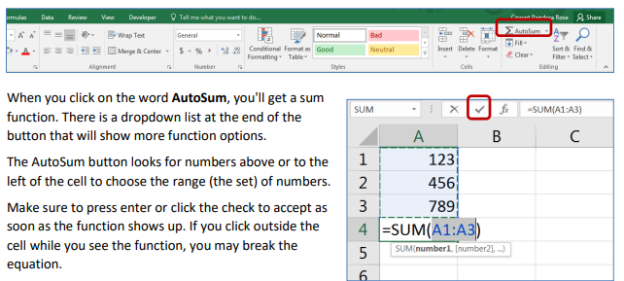
For example, specific functions are available to calculate a sum, an average, a loan payment, logarithms and random numbers. Functions can be typed, if you know the syntax, or can be inserted by clicking on the Function button located left of the formula bar.
All functions are formatted in a similar manner, for example: = function name (parameters). The parameters vary depending upon the function. Functions and cell addresses may be typed in upper case or lower case.
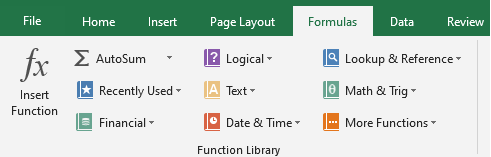
Activate the cell where the function will be placed and select Insert Function from the Formula Ribbon. From the Insert Function dialog box, you can enter a description of what you want to do or you can select a category. Browse through the functions by clicking in the Select a Function menu choices. As each function name is highlighted a description and example of use is provided below the box. Click OK to select a function.
The next window allows you to choose the cells that will be included in the function. Excel will suggest a range that it thinks might be relevant to where your cursor is; notice that there is a colon in between the range of cells. If you would like Excel to use a different range, you can place your cursor in the field and edit the default range. (Remember to include the colon.) Click OK when all the cells for the function have been selected.