Unit 3: slide Presentation
1. Ribbon Tabs
To start PowerPoint, click on the Start button and scroll down or search for PowerPoint. Click on the result to open it. Then further select a Blank Presentation. A new blank PowerPoint presentation will open.
On the Ribbon above, you can see various tabs such as:
1. File
2. Home
3. Insert
4. Design
5. Transitions
6. Animations
7. Slide Show
8. Review
9. View
10. Help
Home
In the Home tab, you will find various groups such as clipboard, slides, font, paragraph, drawing, and editing. You can use the cut, copy, paste, and format painter functions from the Clipboard group.

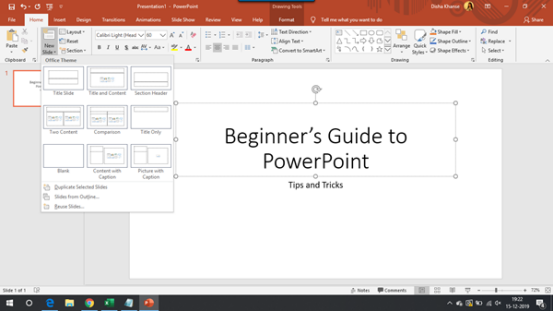
In the Slides group, you can add a new slide to the presentation with the layout of your choice. You can reset the position, size, and formatting of the slide placeholders to their default settings.
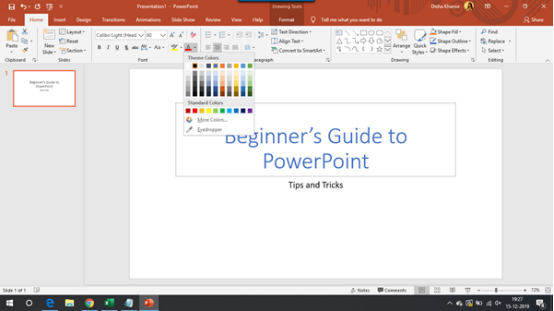
You can choose a new font and change the font size for the text. The Font group offers more options to make the text bold, italicize the text, underline the text, change the case, adjust the spacing between the characters, etc. You can also change the font color and highlight the text in bright colors.
In the Paragraph group, you can create a bulleted list, numbered list, increase or decrease indent, and adjust the space between lines of text. You can align the text to left, right, center, or evenly distribute your text between the margins. You can add or remove columns and also choose the width and spacing of your columns.
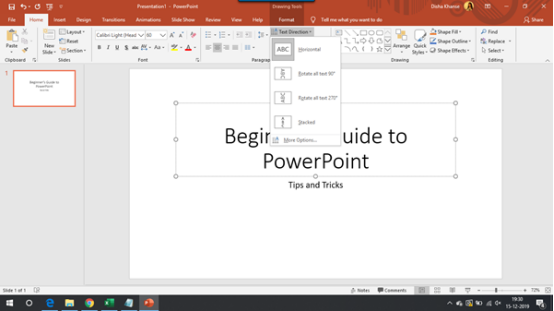
Under Text Direction, you will find options to change the orientation of the text to vertical, stacked, or rotate it to the desired direction.
The Convert to SmartArt Graphic helps you organize and present the information in forms of a process, cycle, relationship, hierarchy, etc.
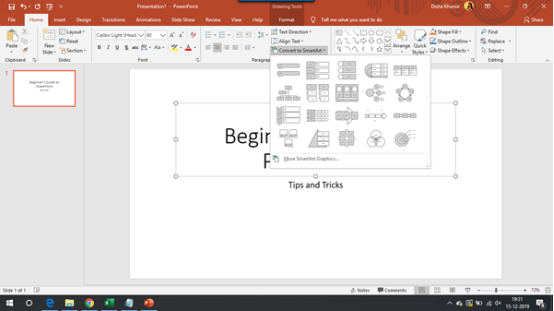
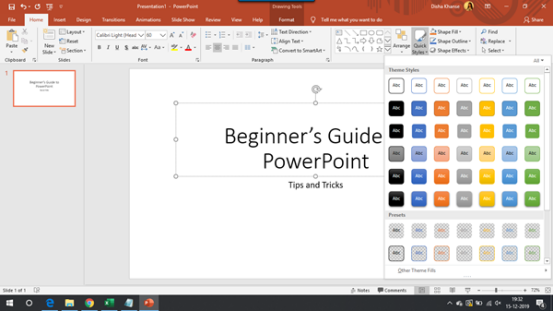
From the Drawing group, you can insert various shapes such as squares, circles, arrows, flowcharts, action buttons, and many more. To the shapes, you can add different visual styles to change its appearance.